
PDF CONVERTER / ANDROID TUTORIAL
How to Split a PDF on Android
Divide a PDF into smaller files by choosing how many pages each output file should contain. Save the generated files in one folder.
Screenshots show the English app interface. Translated button names may differ from the labels in the images.
STEP 01 / 04
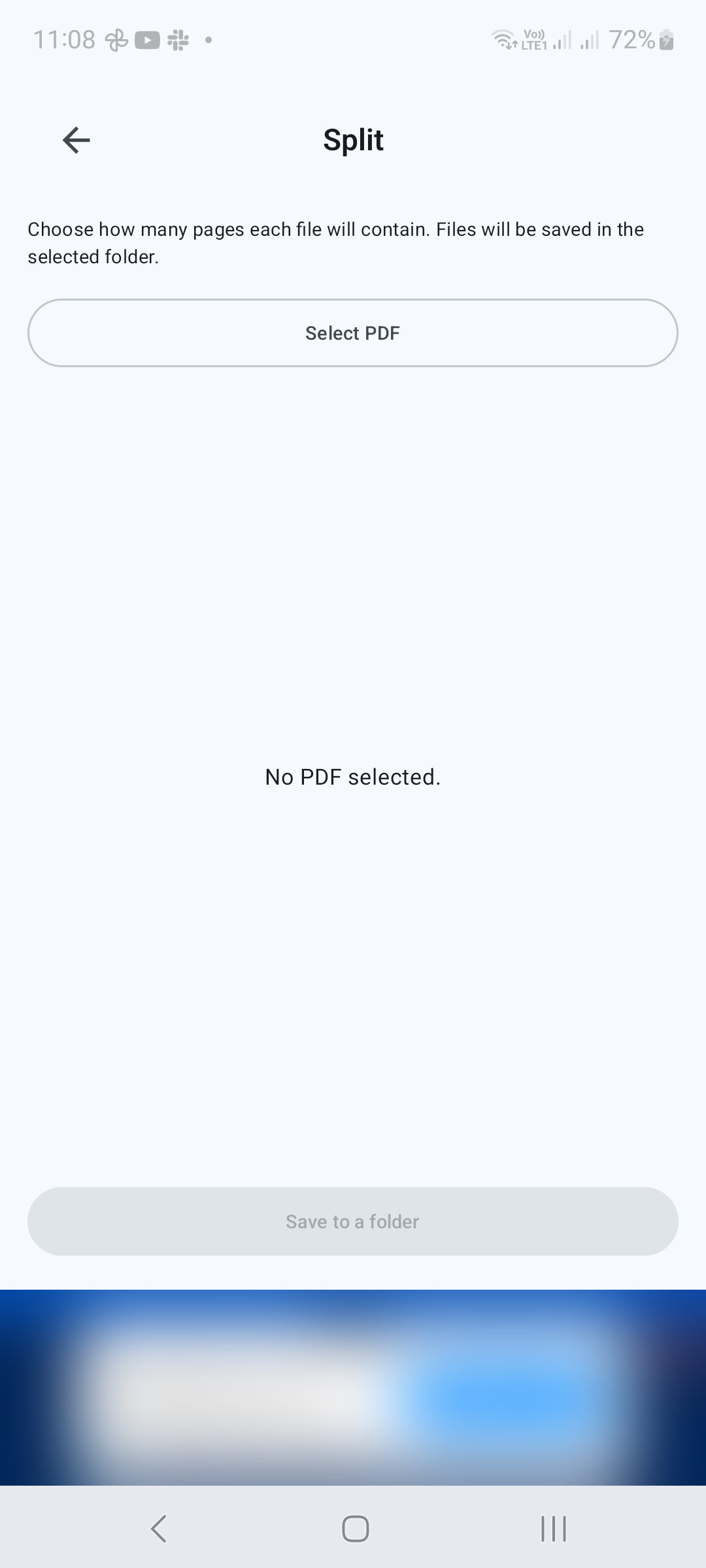
Select a source PDF
Open Split under Tools and tap Select PDF. Choose the document and confirm the displayed page count.
STEP 02 / 04
Set pages per file
Enter a positive whole number in Pages per file. The app shows how many files will be generated. With a three-page PDF, entering 1 creates three single-page files; entering 2 creates a two-page file and a final one-page file.
STEP 03 / 04
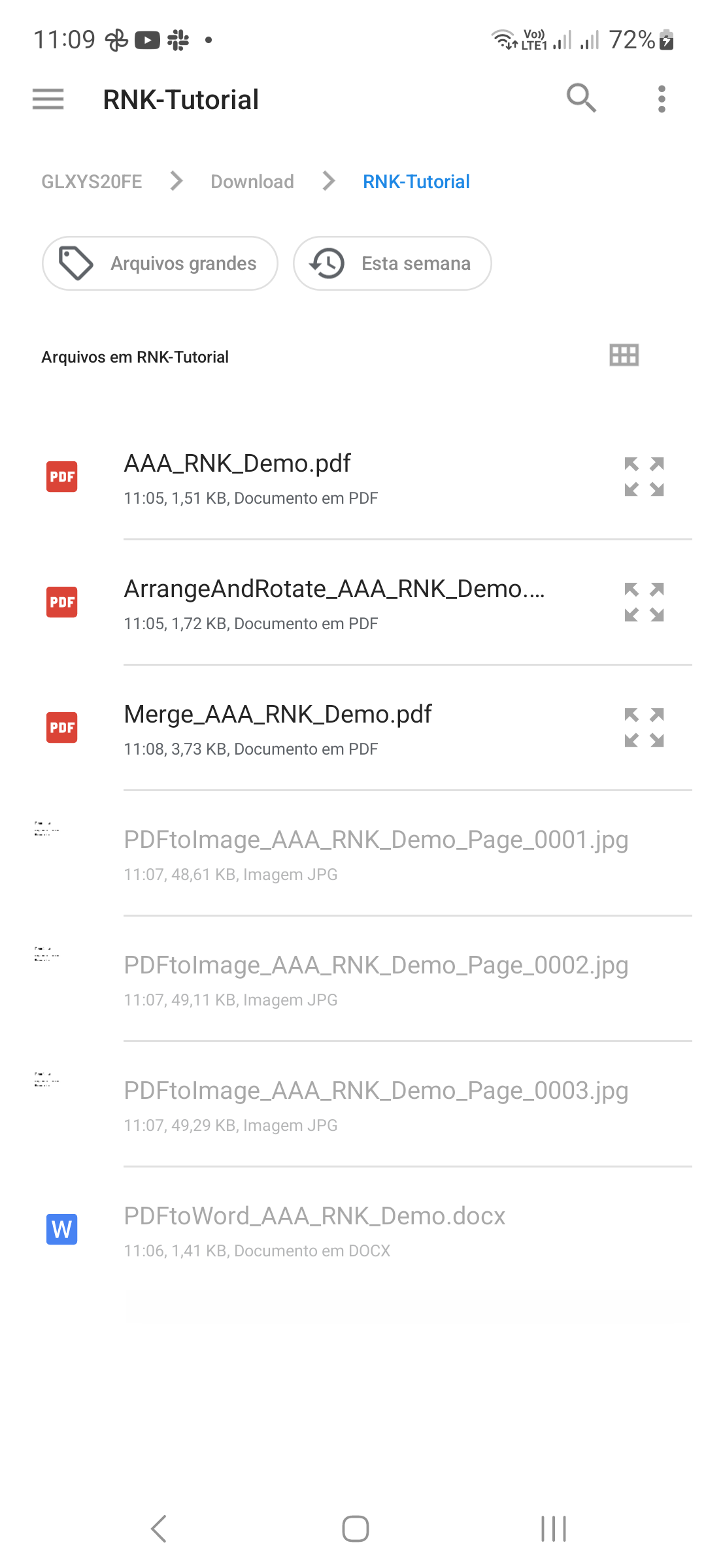
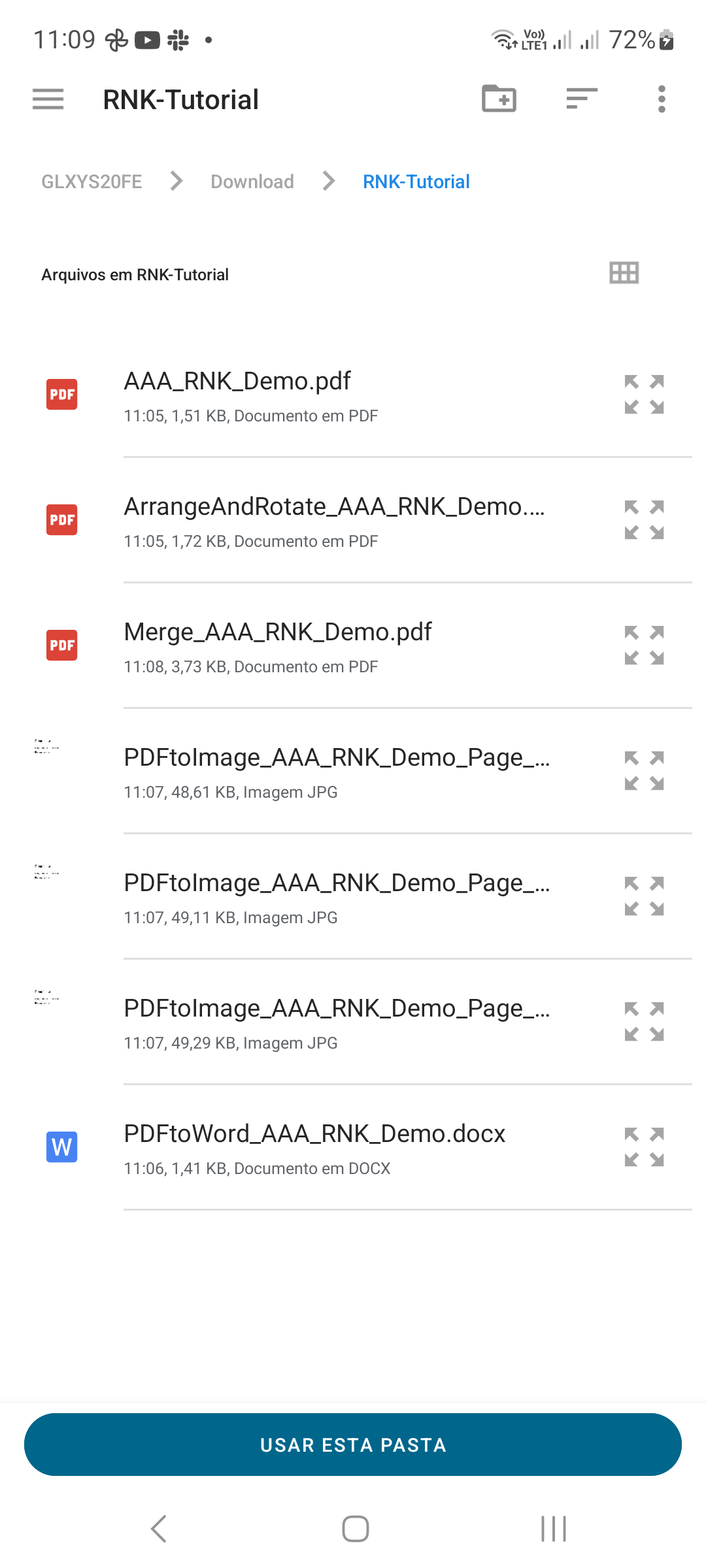
Save the split files
Tap Save to a folder. Choose the destination in Android’s folder picker and confirm access if asked. Wait until the operation completes.
STEP 04 / 04
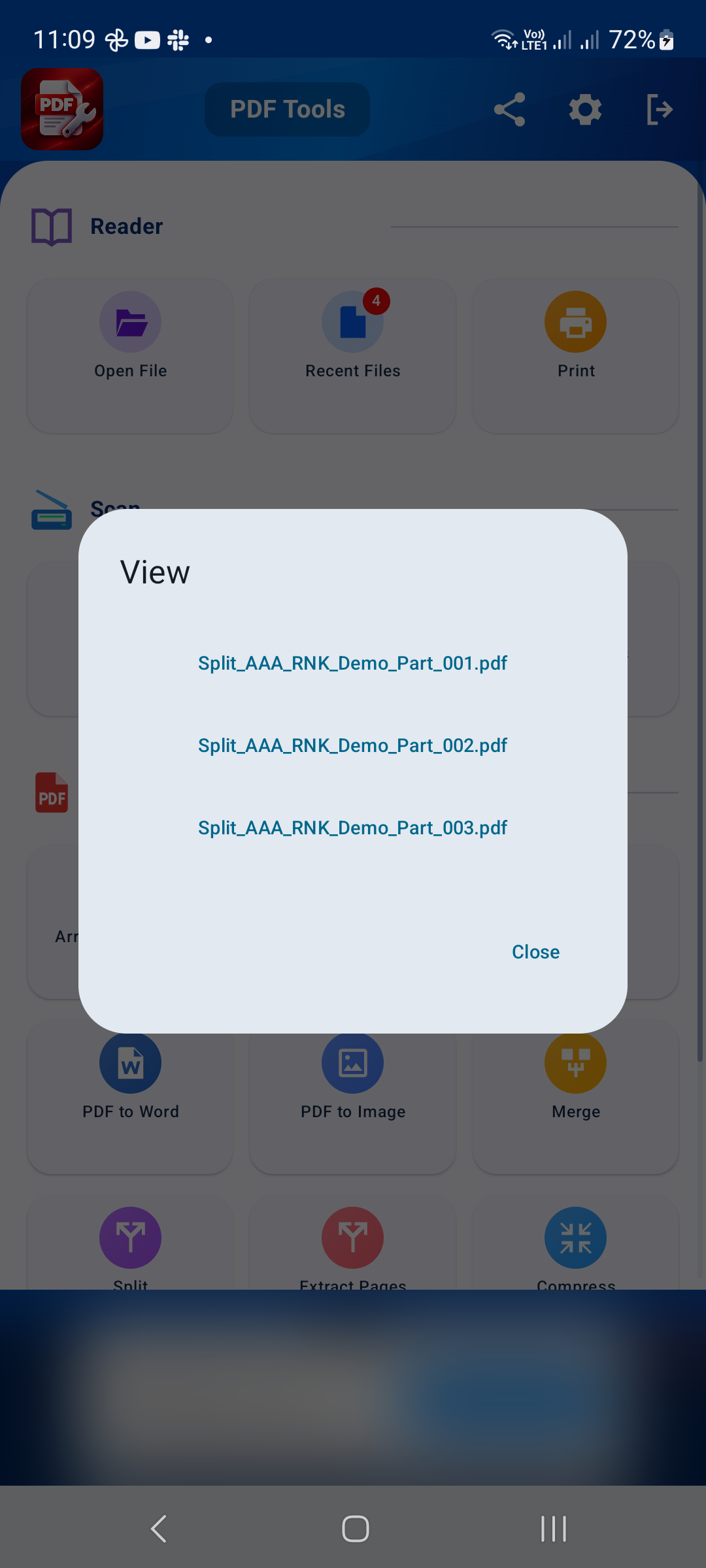
Check every output file
Open the output folder and inspect the generated PDFs. Check that the page groups cover the source document without missing any pages. Rename the files if that makes their contents easier to identify.
Tips for a better result
- Use 1 page per file when every page needs its own PDF.
- Use Extract Pages for selected pages rather than equal-size groups.
GET STARTED ON ANDROID
PDF Converter, Scanner & Tools
Convert JPG to PDF, PDF to Word, scan, read, merge, compress and more.
Get it on Google Play