
PDF CONVERTER / ANDROID TUTORIAL
How to Convert PDF to Word on Android
Extract text from a PDF into a Word document using PDF to Word. Scanned pages use OCR to recognize text.
Screenshots show the English app interface. Translated button names may differ from the labels in the images.
STEP 01 / 04
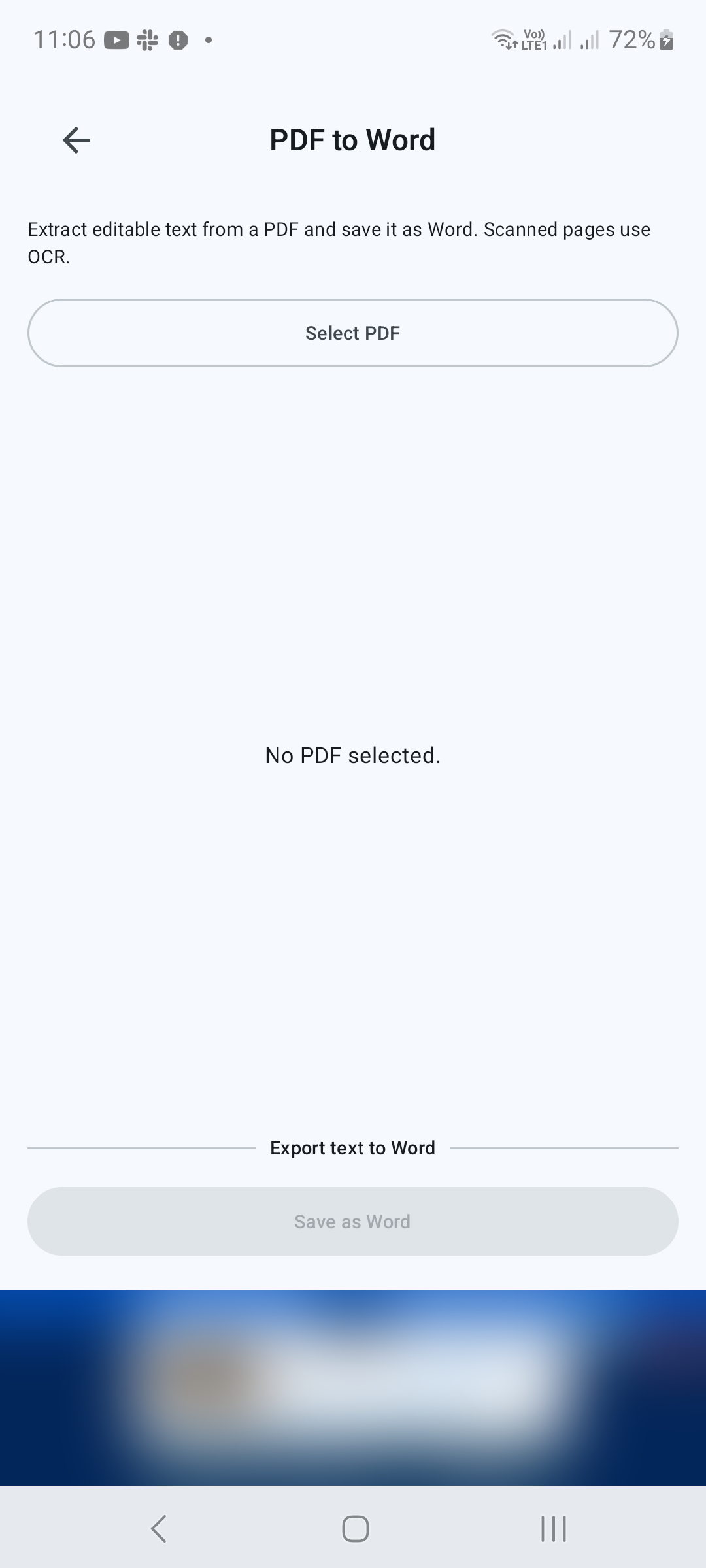
Open PDF to Word
In Tools, tap PDF to Word. Tap Select PDF and pick the document you want to convert.
STEP 02 / 04
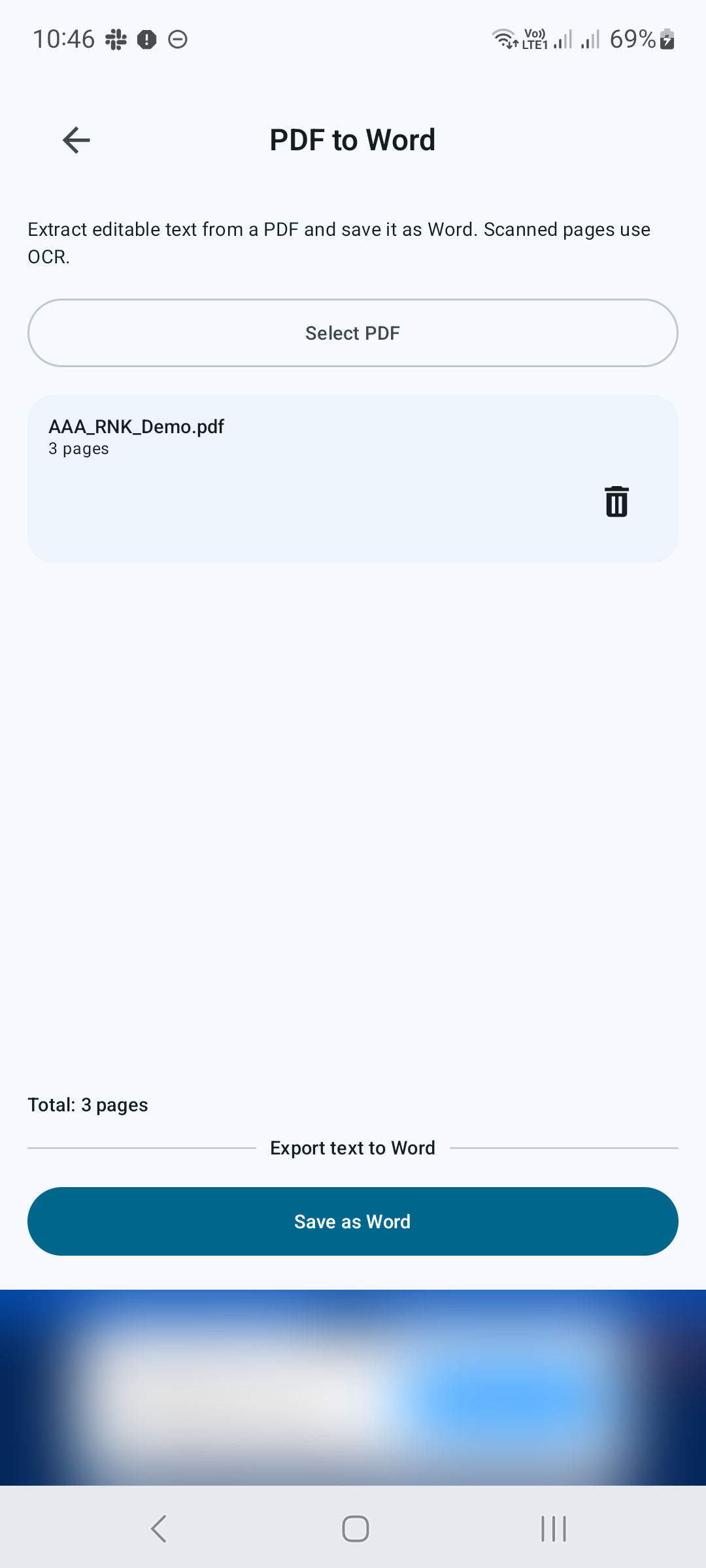
Check the selected file
Confirm the file name and page count shown on screen. If you picked the wrong file, remove it from the selection and choose the correct PDF. The screen labels this action Export text to Word.
STEP 03 / 04
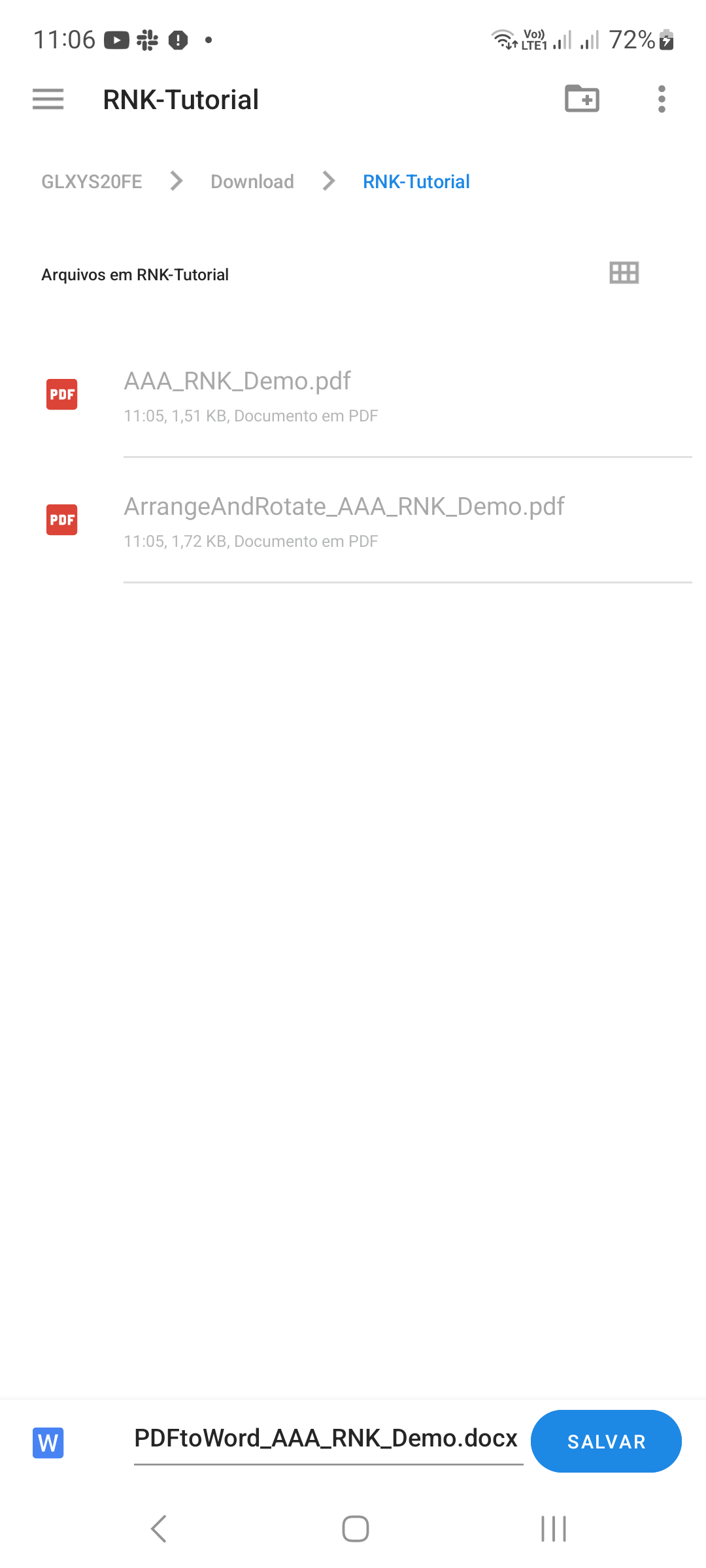
Export the text
Tap Save as Word. Choose the output name and location when prompted, then let the app complete the conversion. For scanned pages, OCR attempts to recognize the text in the page image.
STEP 04 / 04
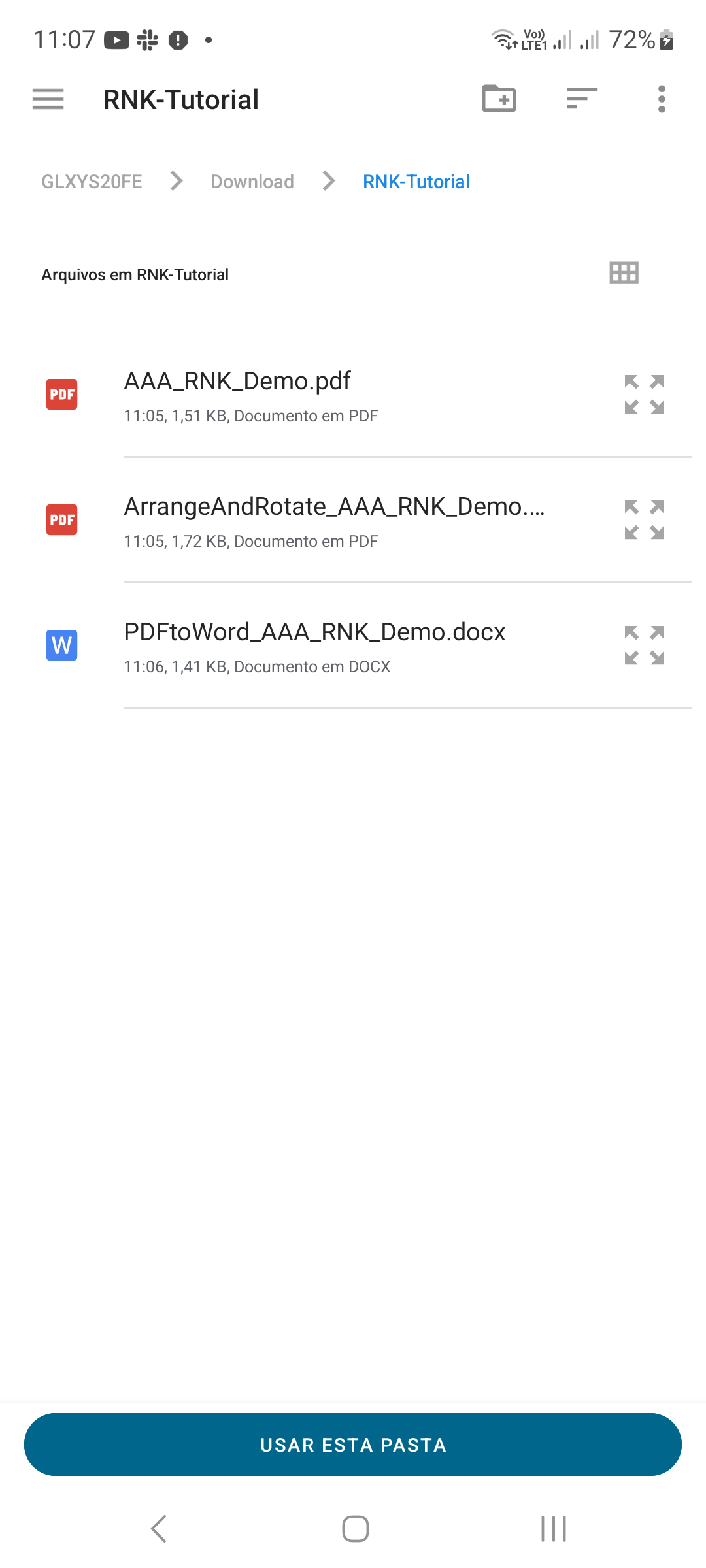
Find and review the Word document
Find the saved DOCX in the destination folder, as illustrated in the Android folder list. Open it in a compatible Word editor. Proofread names, numbers, punctuation and line breaks, especially on scanned pages. Reformat tables or headings as needed before sharing the editable file.
Tips for a better result
- Start with clear, upright scans for better OCR results.
- Check the extracted text against the original PDF before relying on it.
GET STARTED ON ANDROID
PDF Converter, Scanner & Tools
Convert JPG to PDF, PDF to Word, scan, read, merge, compress and more.
Get it on Google Play