
PDF CONVERTER / ANDROID TUTORIAL
How to Extract PDF Pages on Android
Keep only the pages you need from a PDF and save them as a new document using Extract Pages.
Screenshots show the English app interface. Translated button names may differ from the labels in the images.
STEP 01 / 04
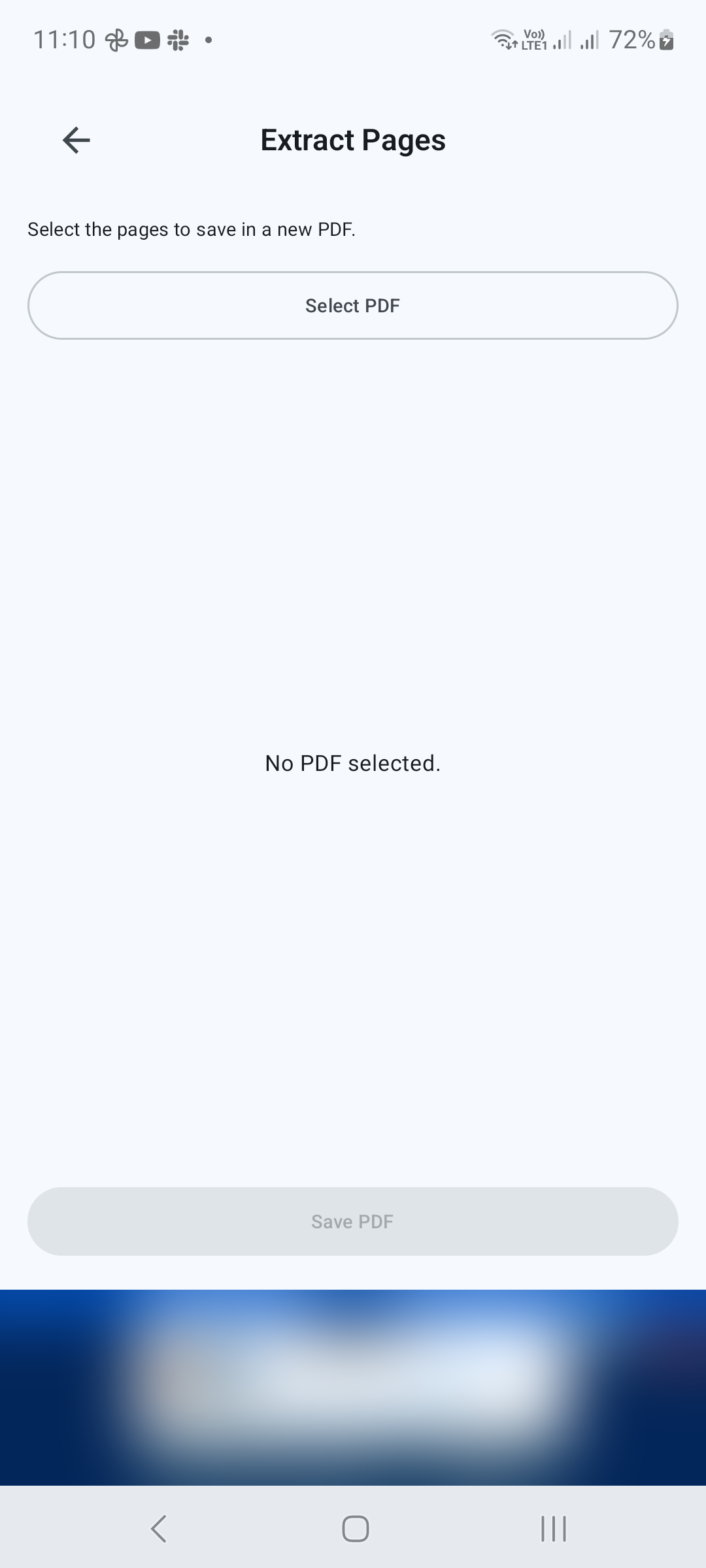
Open Extract Pages
In Tools, tap Extract Pages. Tap Select PDF and choose the source document.
STEP 02 / 04
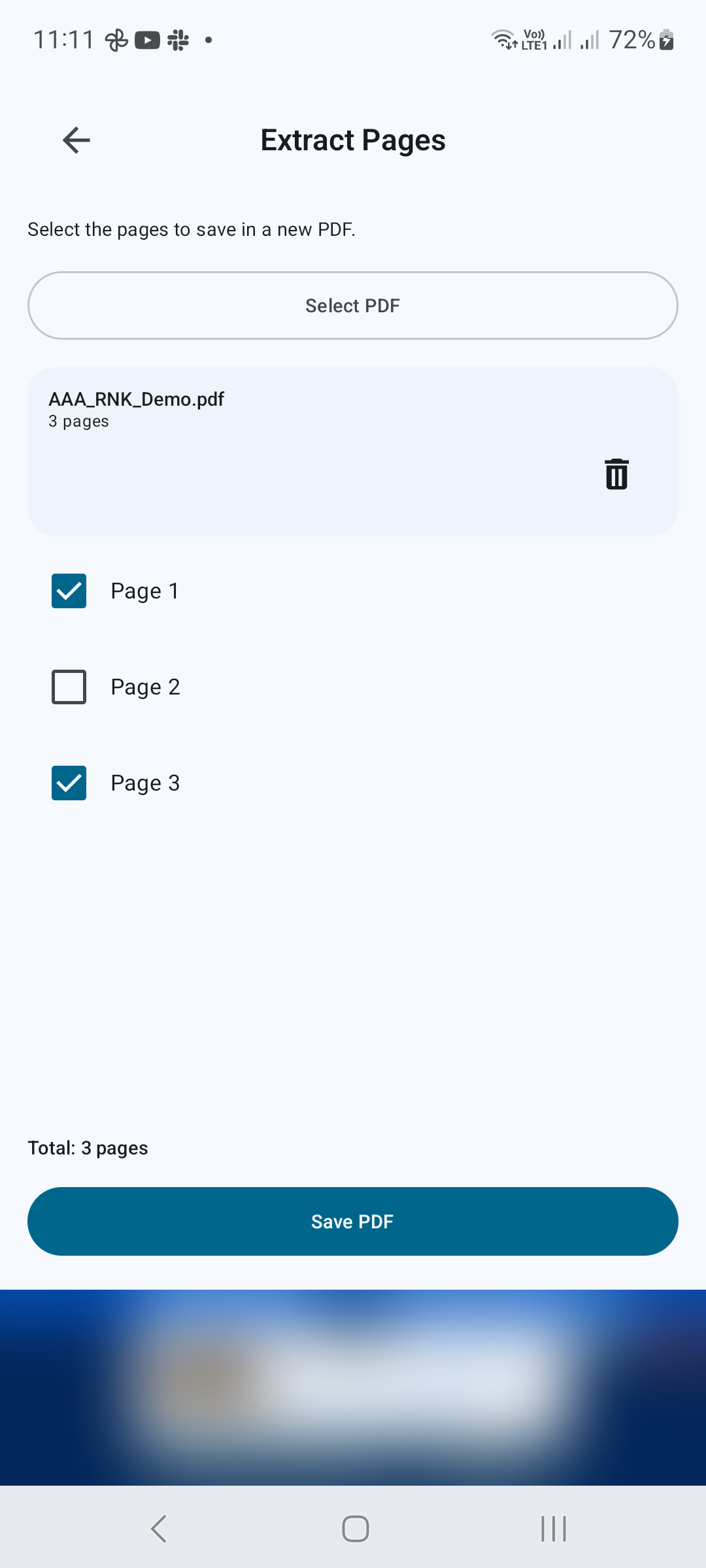
Select the pages to keep
Use the checkboxes next to the page numbers. Select only the pages that belong in the new PDF. For example, choose pages 1 and 3 from a three-page document to leave page 2 out. Make sure at least one page is selected.
STEP 03 / 04
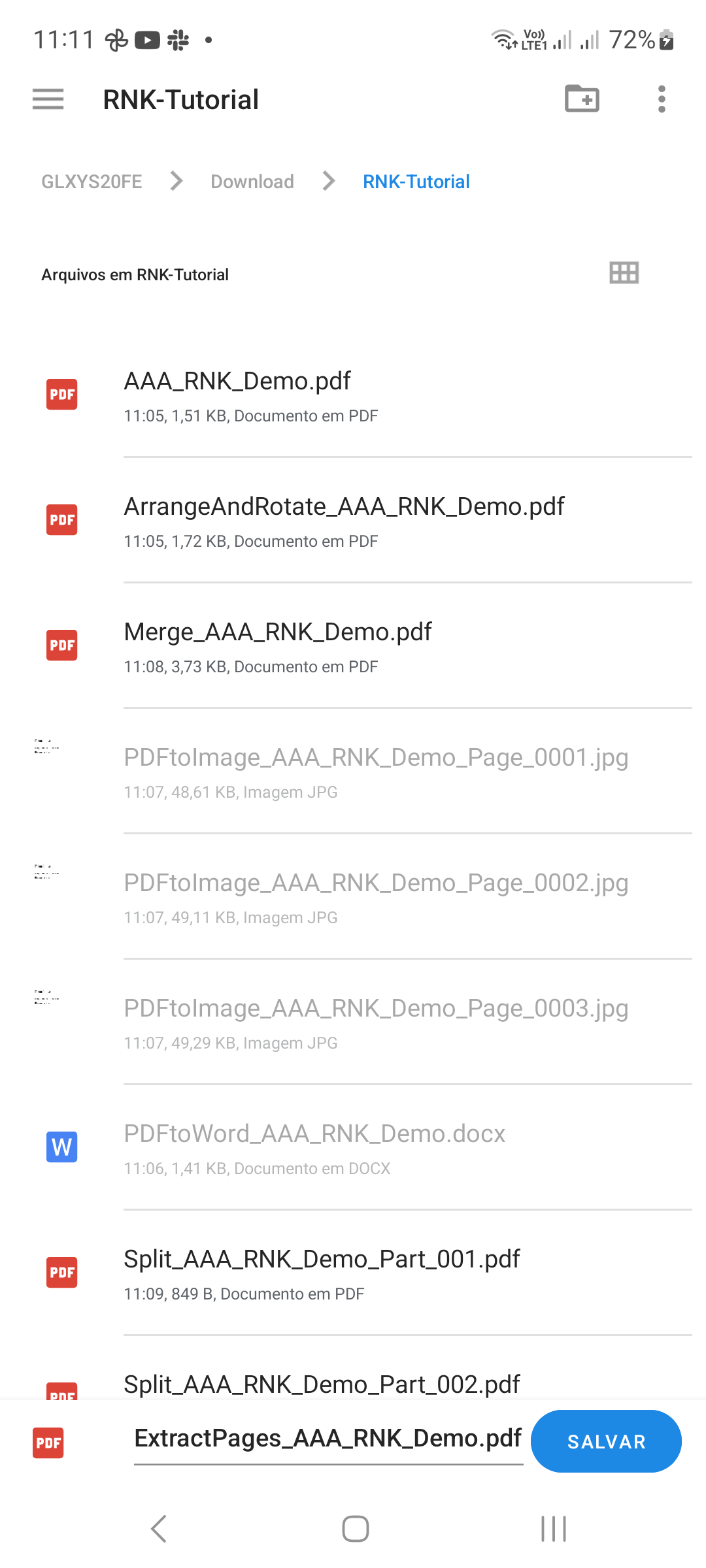
Save the selection
Tap Save PDF. Choose a destination and file name in Android’s save dialog, then confirm. Keep a distinct name so the extracted document is easy to distinguish from the source.
STEP 04 / 04
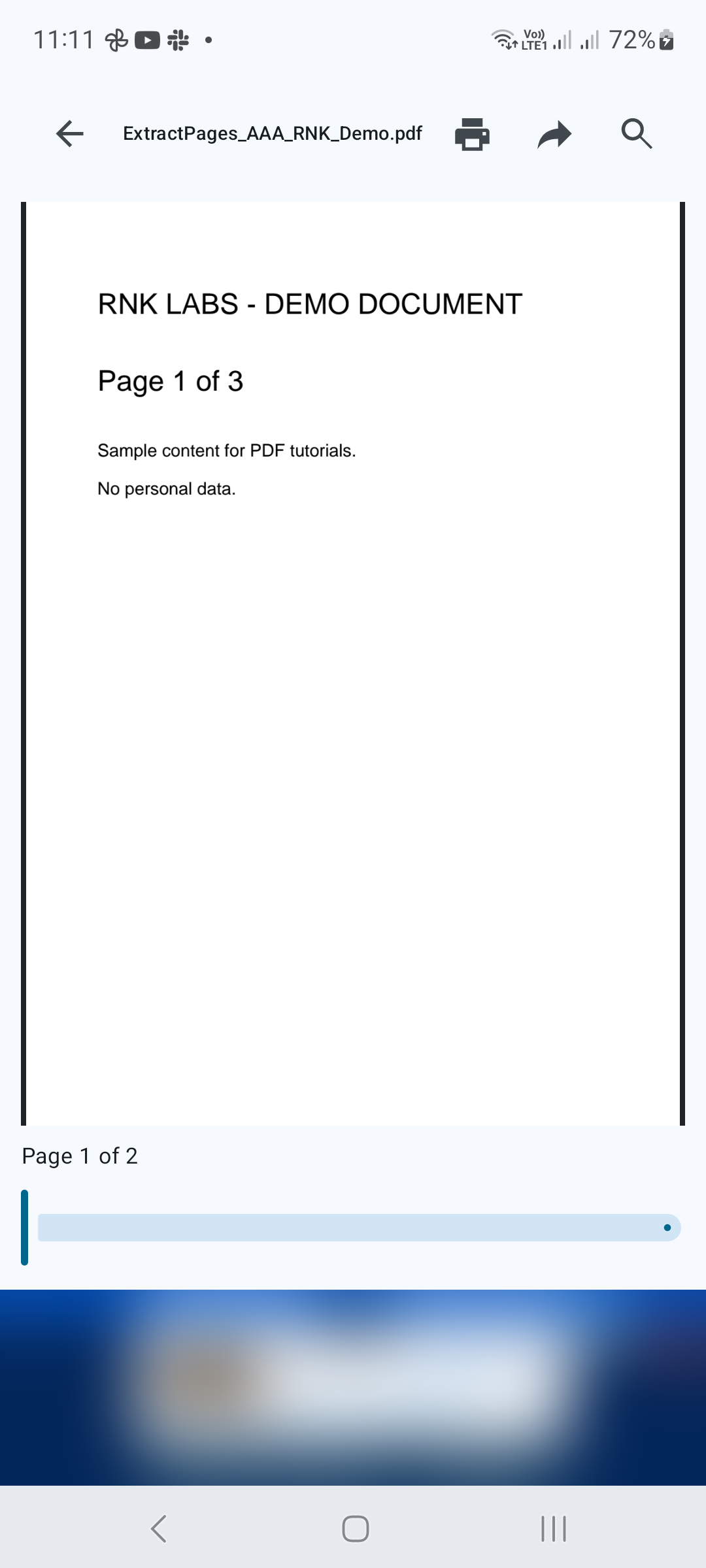
Verify the new document
Open the saved PDF and check that it contains the intended pages. If the new document needs a different page order or orientation, use Arrange and Rotate Pages afterward.
Tips for a better result
- Compare selected page numbers with the original document before saving.
- Keep the source PDF until you have verified the extracted copy.
GET STARTED ON ANDROID
PDF Converter, Scanner & Tools
Convert JPG to PDF, PDF to Word, scan, read, merge, compress and more.
Get it on Google Play