
PDF CONVERTER / ANDROID TUTORIAL
How to Convert PDF to Image on Android
Export PDF pages as JPG or PNG images. Select the pages you need and optionally package the output in a ZIP file.
Screenshots show the English app interface. Translated button names may differ from the labels in the images.
STEP 01 / 04
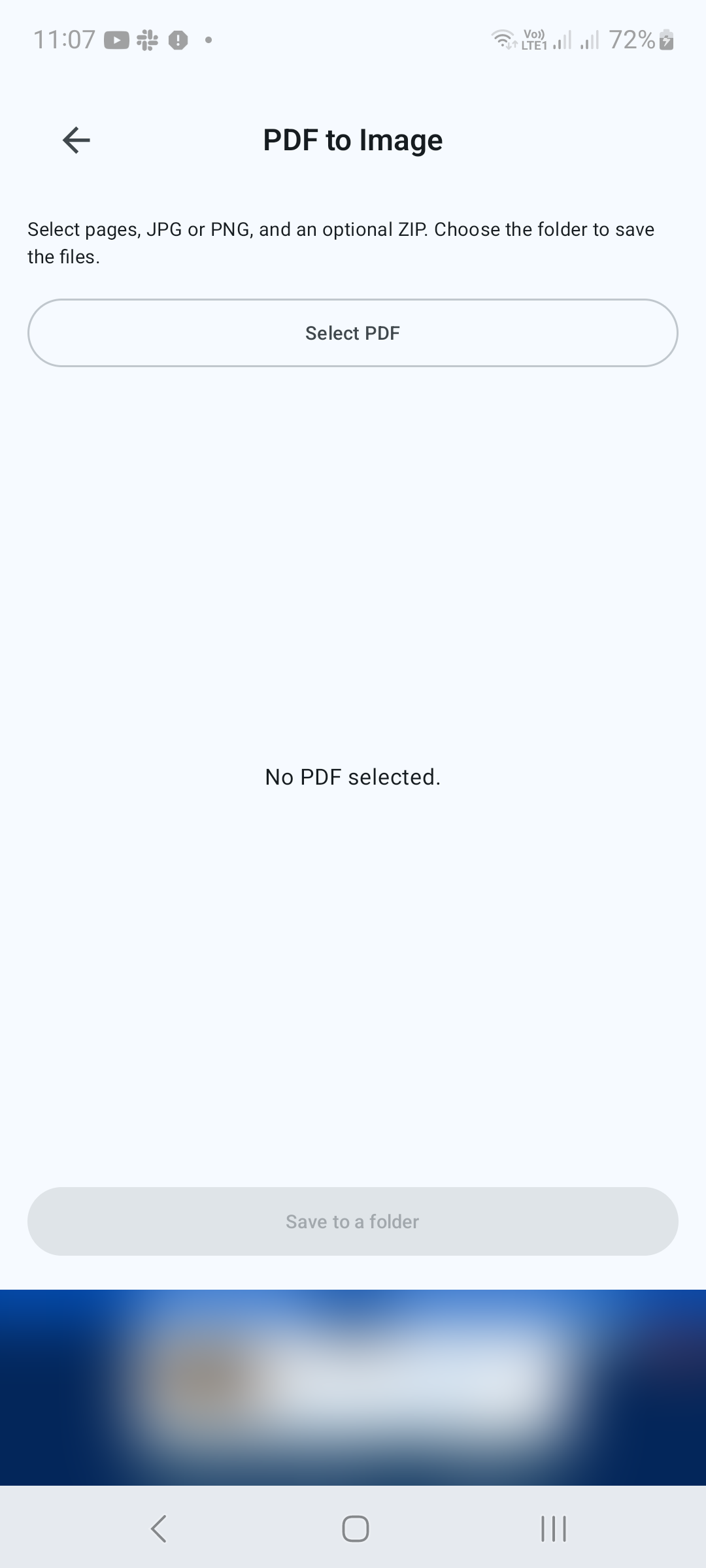
Select the PDF
Open PDF to Image under Tools. Tap Select PDF and choose the source document.
STEP 02 / 04
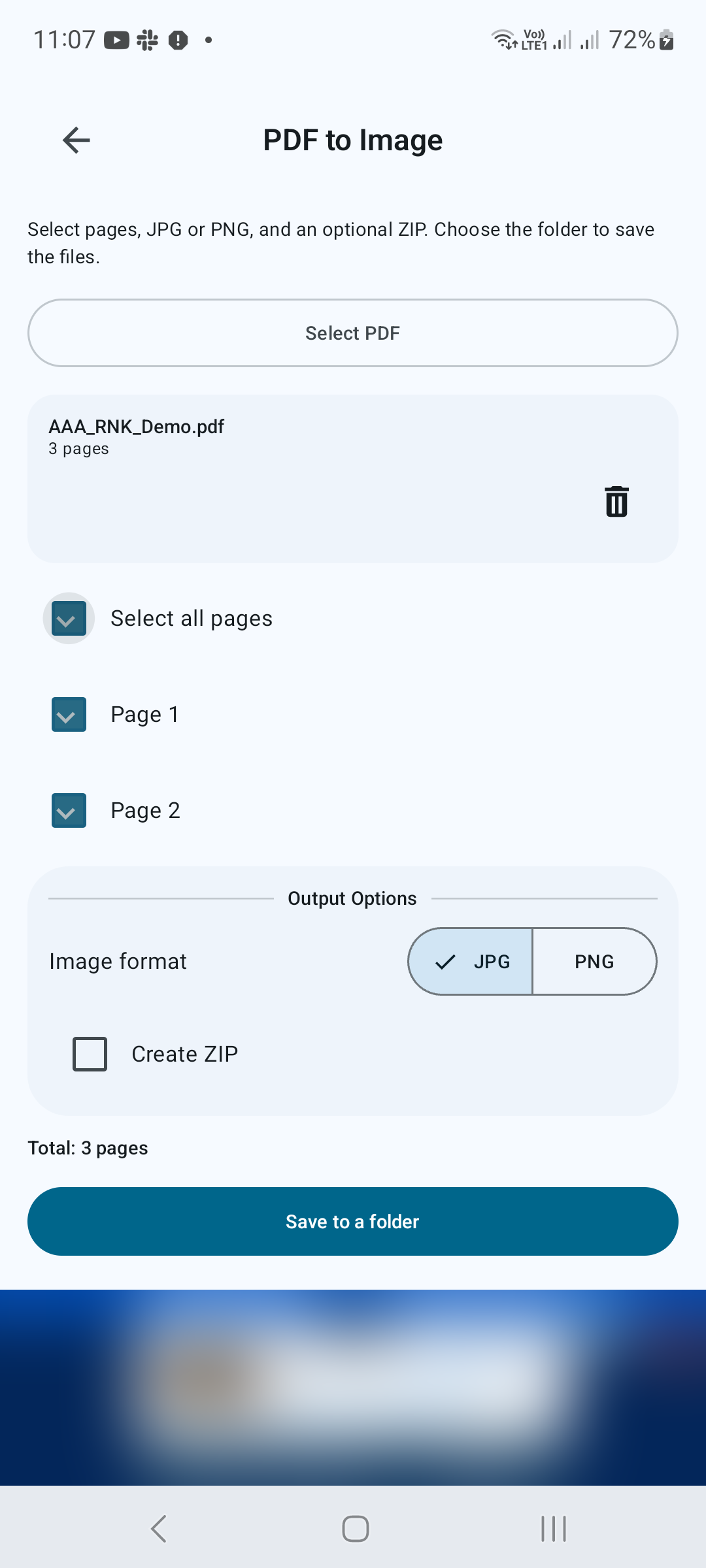
Choose pages and image format
Use the page checkboxes to select individual pages or choose Select all pages. Under Output Options, select JPG or PNG. Enable Create ZIP if you want the output packaged together.
STEP 03 / 04
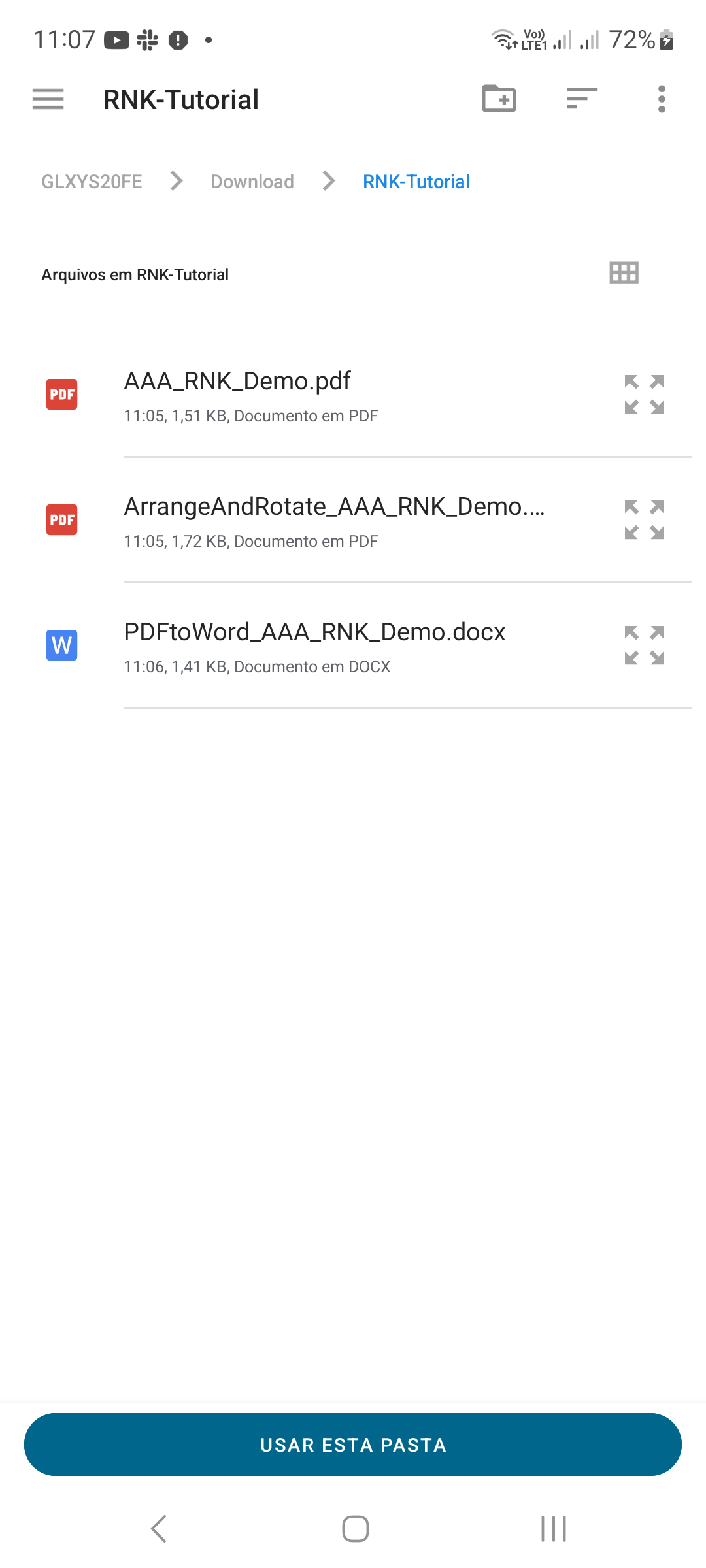
Choose an output folder
Tap Save to a folder. In Android’s folder picker, select the destination and confirm access to that folder when requested. Let the export finish before leaving the app.
STEP 04 / 04
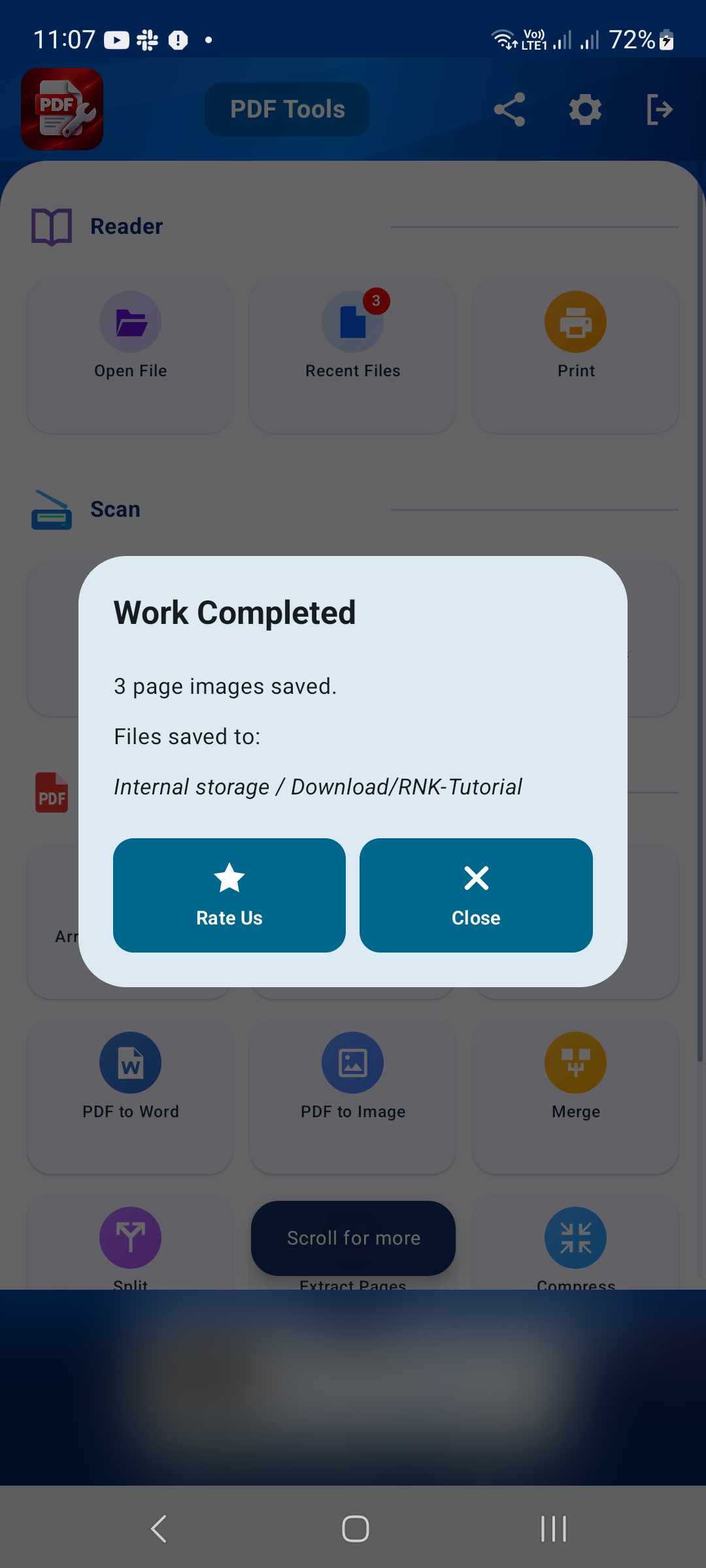
Check the exported images
Open the destination folder in your file manager. Check that you have the expected pages and that text is readable. If you enabled ZIP output, open or extract the archive to access the images inside.
Tips for a better result
- JPG is useful for photographic pages; PNG is useful when preserving crisp graphics matters.
- Check your page selection before export to avoid unnecessary files.
GET STARTED ON ANDROID
PDF Converter, Scanner & Tools
Convert JPG to PDF, PDF to Word, scan, read, merge, compress and more.
Get it on Google Play