
PDF CONVERTER / ANDROID TUTORIAL
How to Scan Documents on Android
Turn a paper document into a PDF with the Scanner tool. Capture the page, refine the crop and review the result before saving.
Screenshots show the English app interface. Translated button names may differ from the labels in the images.
STEP 01 / 04
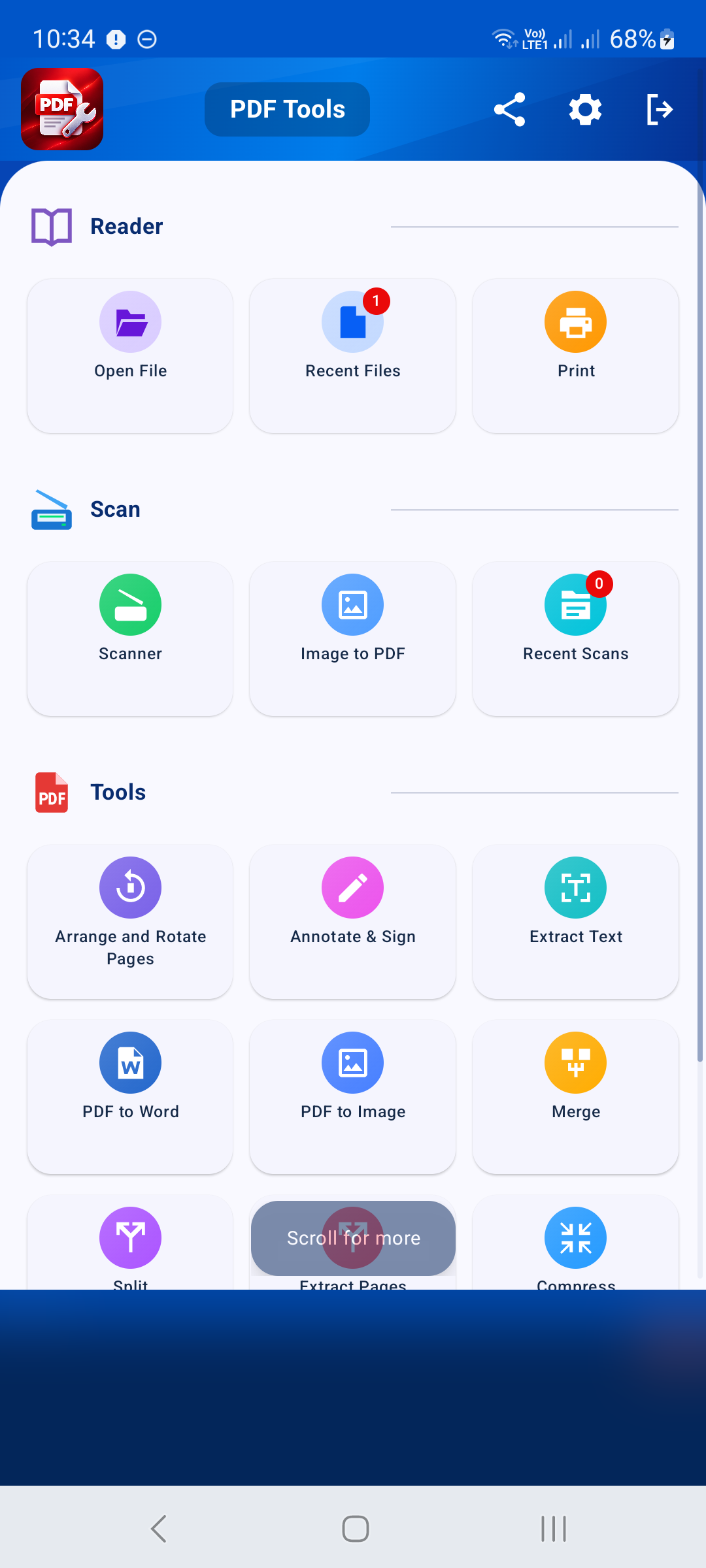
Open Scanner
On the home screen, find the Scan section and tap Scanner. Keep the rear camera pointed at your document. If Android requests camera permission, allow it to take the scan.
STEP 02 / 04
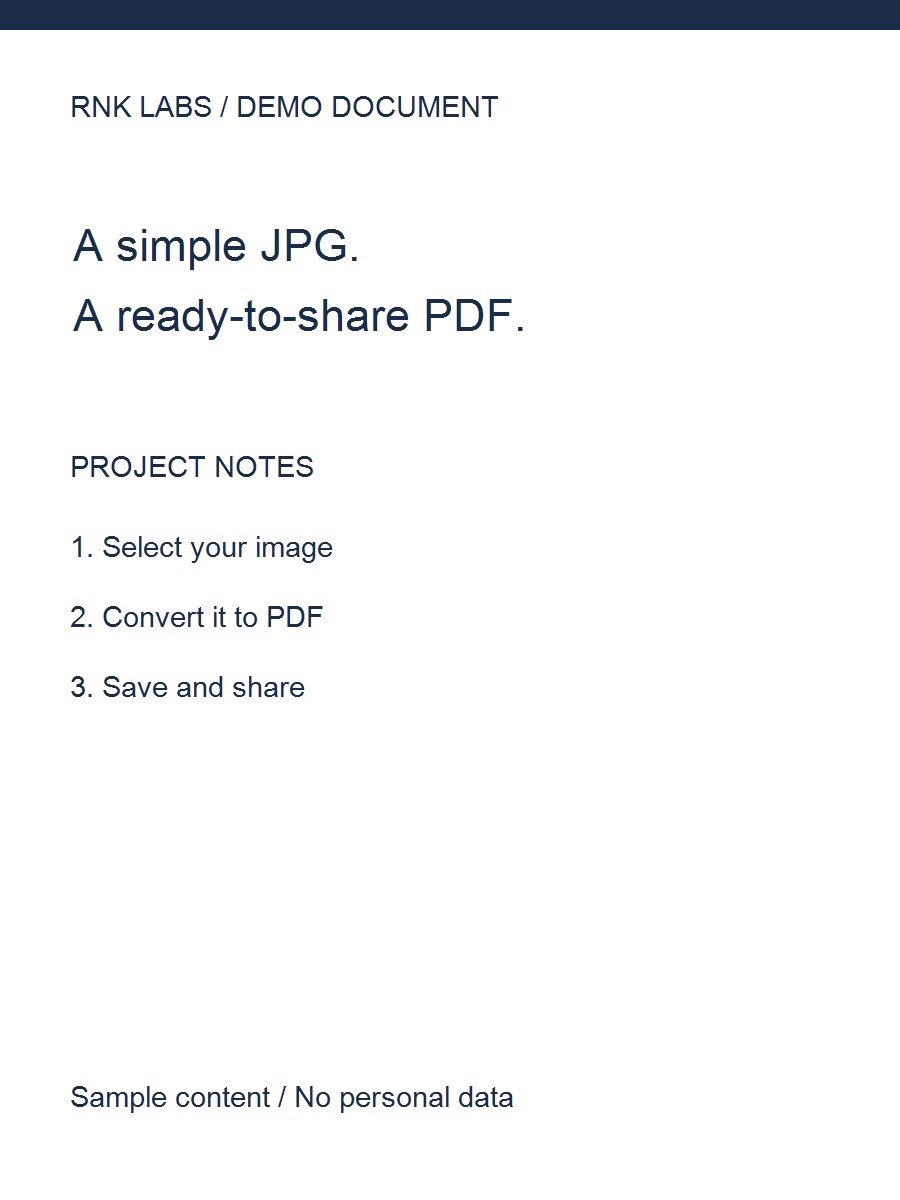
Photograph your document
Place the whole page inside the camera view. Hold the phone steady and keep it parallel to the page. Use the flash control if needed, and tap the Photograph Document shutter button. Avoid shadows, glare and fingers covering the text.
STEP 03 / 04
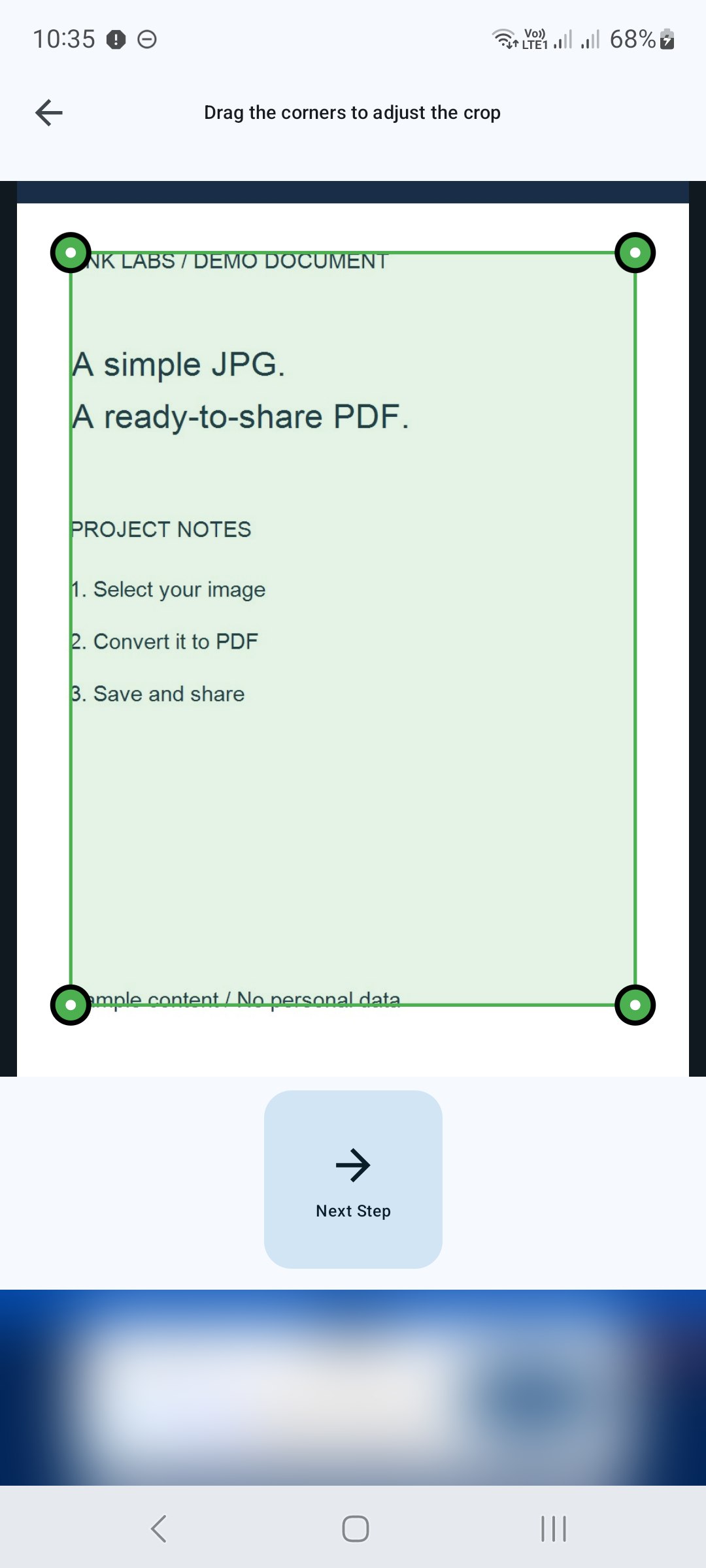
Crop and review the scan
Drag the corner handles to match the document edges and tap Next Step. In Review, choose the paper size and orientation, adjust the page placement, and use brightness and contrast to improve legibility.
STEP 04 / 04
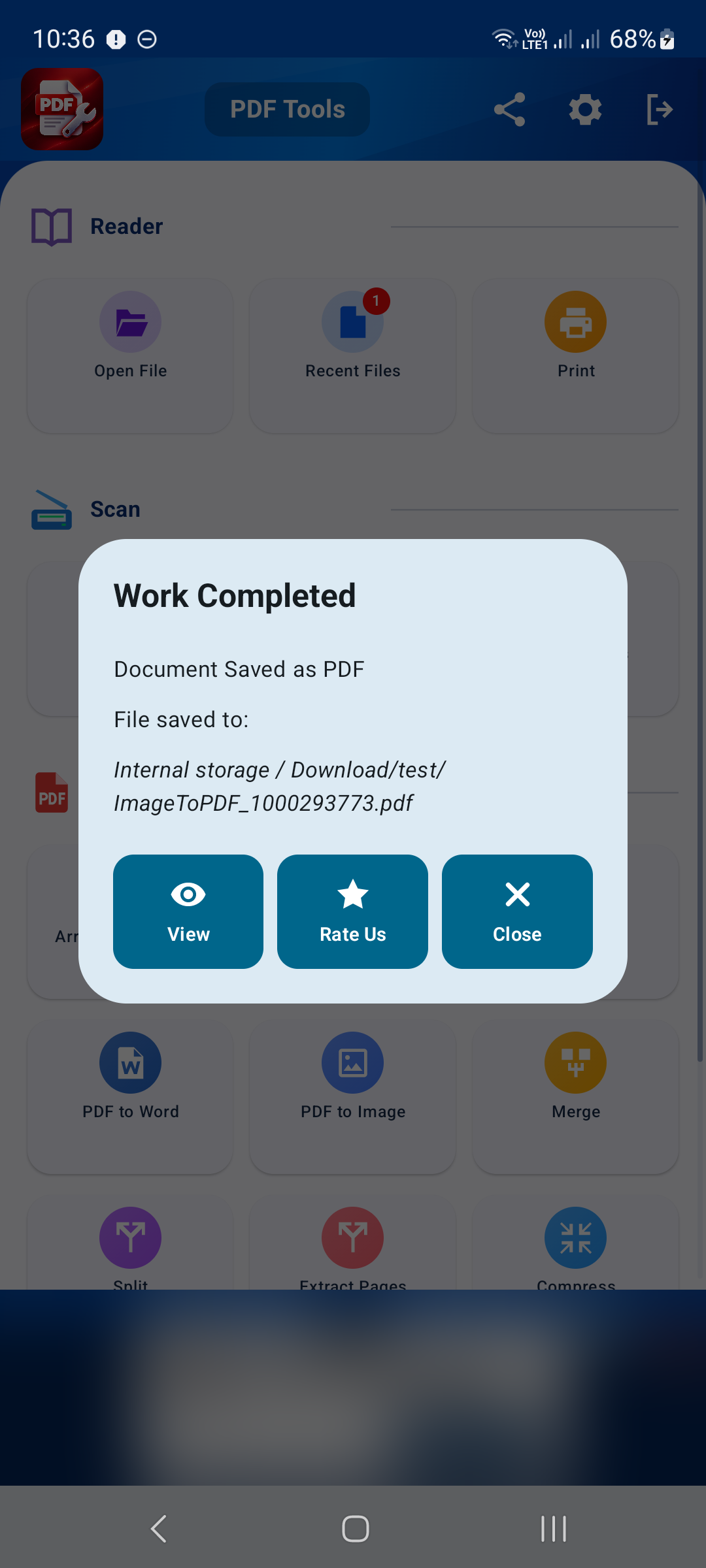
Save your scan as PDF
Tap Save PDF, choose a destination and file name in Android’s save dialog, and confirm. When the save completes, use View to inspect the PDF. Check that small text is readable before sharing.
Tips for a better result
- Photograph one clearly framed page at a time.
- Retake a blurry photo; brightness controls cannot restore missing detail.
- For multiple saved PDFs, use Merge to combine them.
GET STARTED ON ANDROID
PDF Converter, Scanner & Tools
Convert JPG to PDF, PDF to Word, scan, read, merge, compress and more.
Get it on Google Play