
PDF CONVERTER / ANDROID TUTORIAL
How to Arrange and Rotate PDF Pages on Android
Put PDF pages in the right order and fix sideways pages with Arrange and Rotate Pages. Save the edited document when the sequence looks right.
Screenshots show the English app interface. Translated button names may differ from the labels in the images.
STEP 01 / 04
Open the page organizer
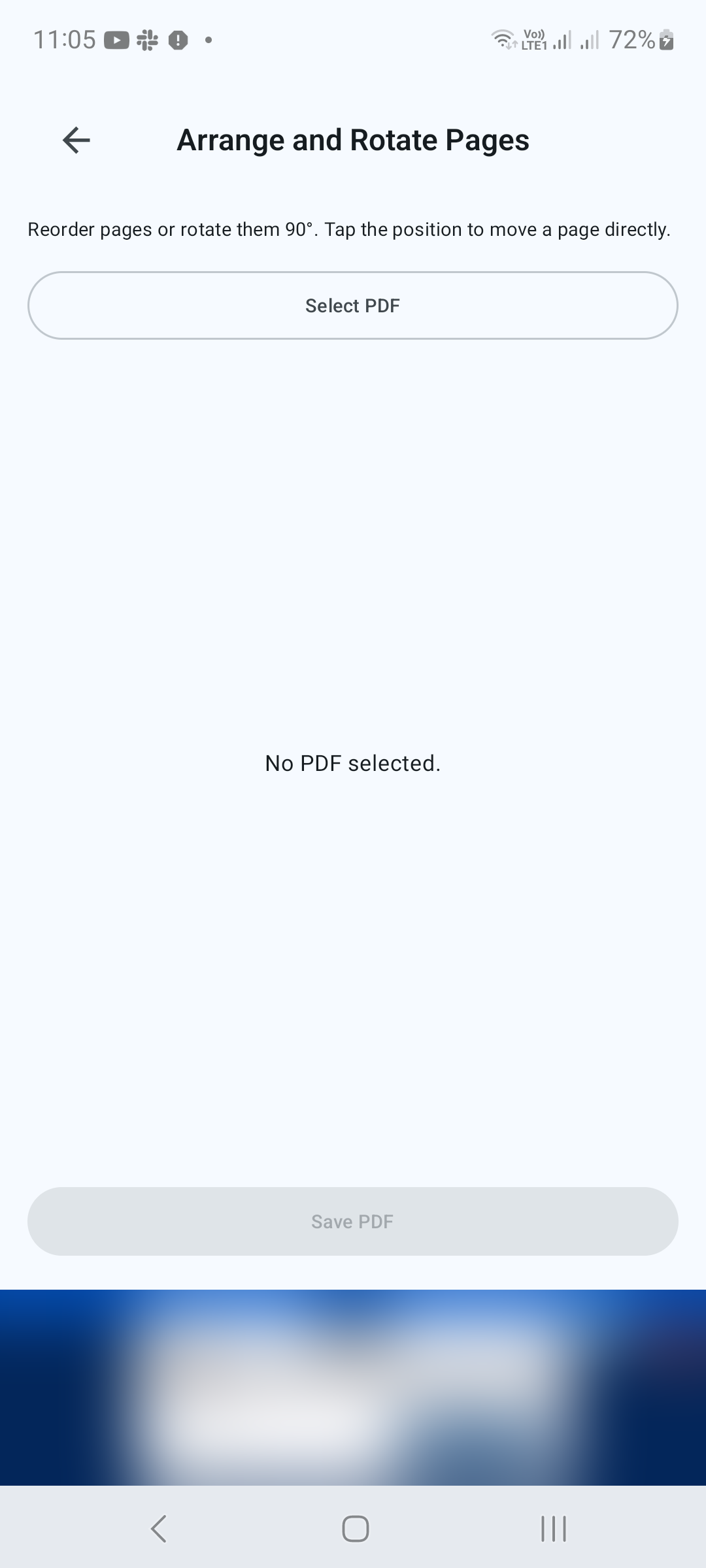
From the home screen, scroll to Tools and tap Arrange and Rotate Pages. Tap Select PDF and choose your document in the Android file picker.
STEP 02 / 04
Move pages into position
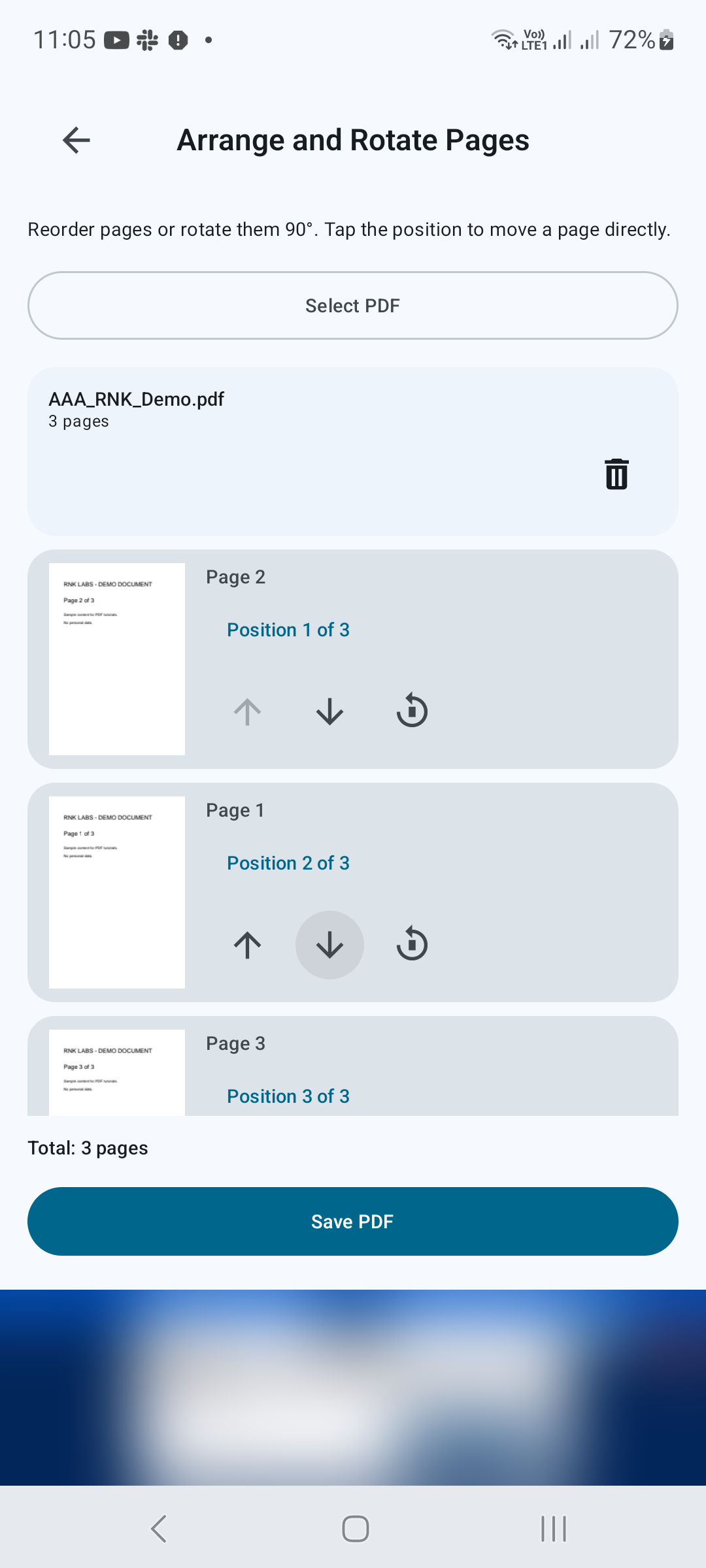
Each page has a preview and a position label. Use the Move up and Move down arrows to change its place in the document. Tap the position label to move a page directly to a different position. Check the sequence as you go.
STEP 03 / 04
Rotate sideways pages
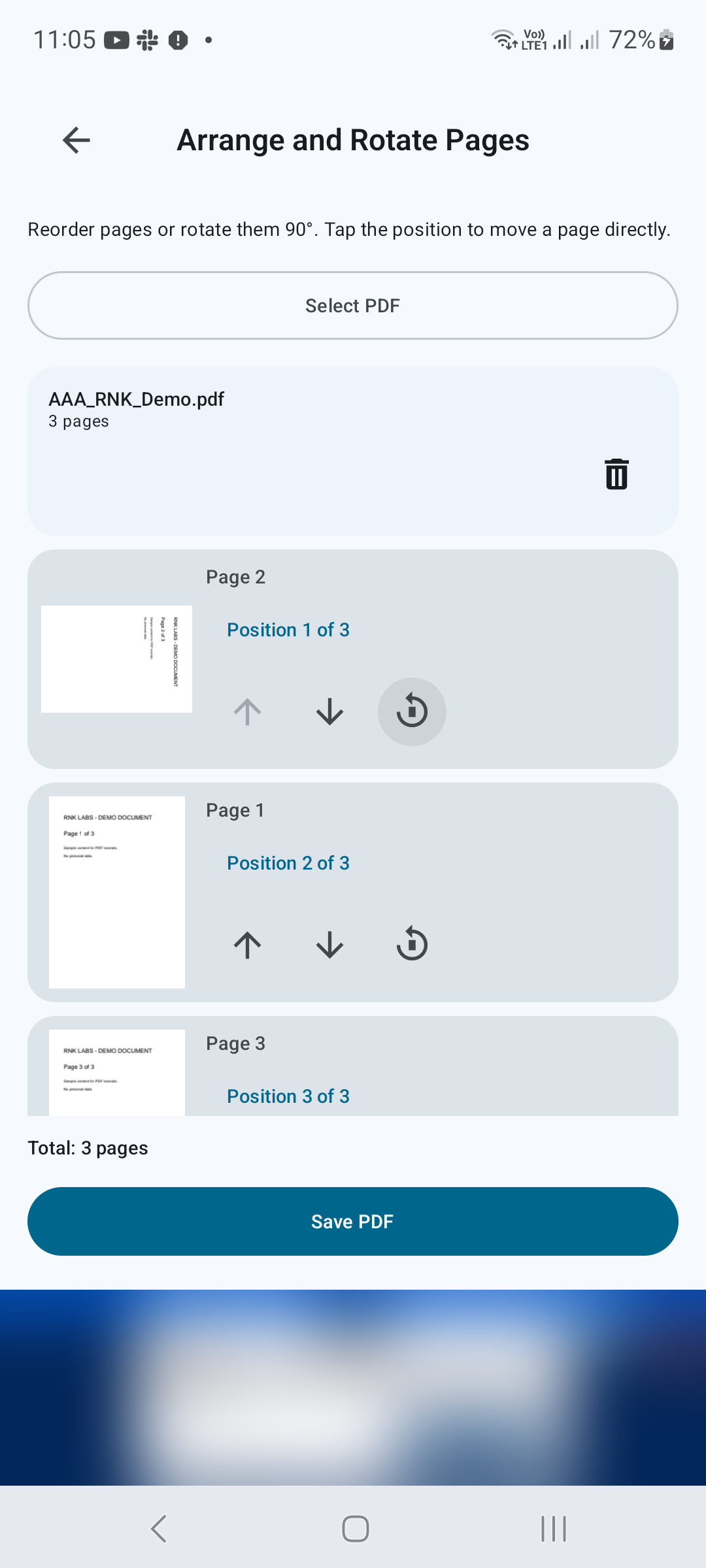
Tap a page’s Rotate 90° control to turn it by a quarter turn. Repeat until the page faces the right way. You can rotate a page without moving it to a new position.
STEP 04 / 04
Save and check the PDF
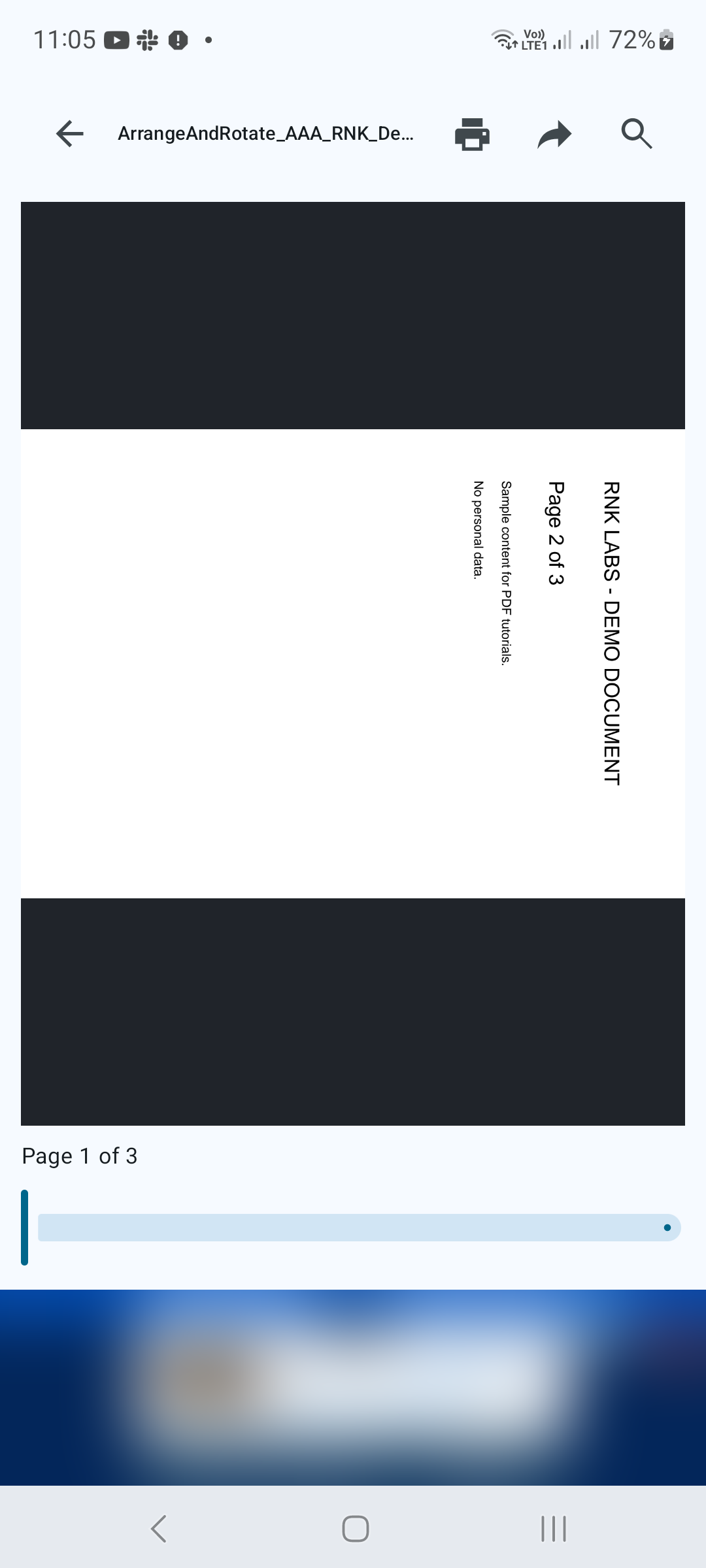
Tap Save PDF, choose a file name and destination, and confirm. Open the saved file and check both the page order and orientation. Keep the original document if you may need to compare the two versions.
Tips for a better result
- Decide the intended page order before moving pages.
- Check every rotated page in the output, especially landscape tables.
GET STARTED ON ANDROID
PDF Converter, Scanner & Tools
Convert JPG to PDF, PDF to Word, scan, read, merge, compress and more.
Get it on Google Play