
PDF CONVERTER / ANDROID TUTORIAL
How to Annotate and Sign a PDF on Android
Add visual notes, highlights, arrows, text and a signature to a PDF using Annotate & Sign, then save a new copy.
Screenshots show the English app interface. Translated button names may differ from the labels in the images.
STEP 01 / 04
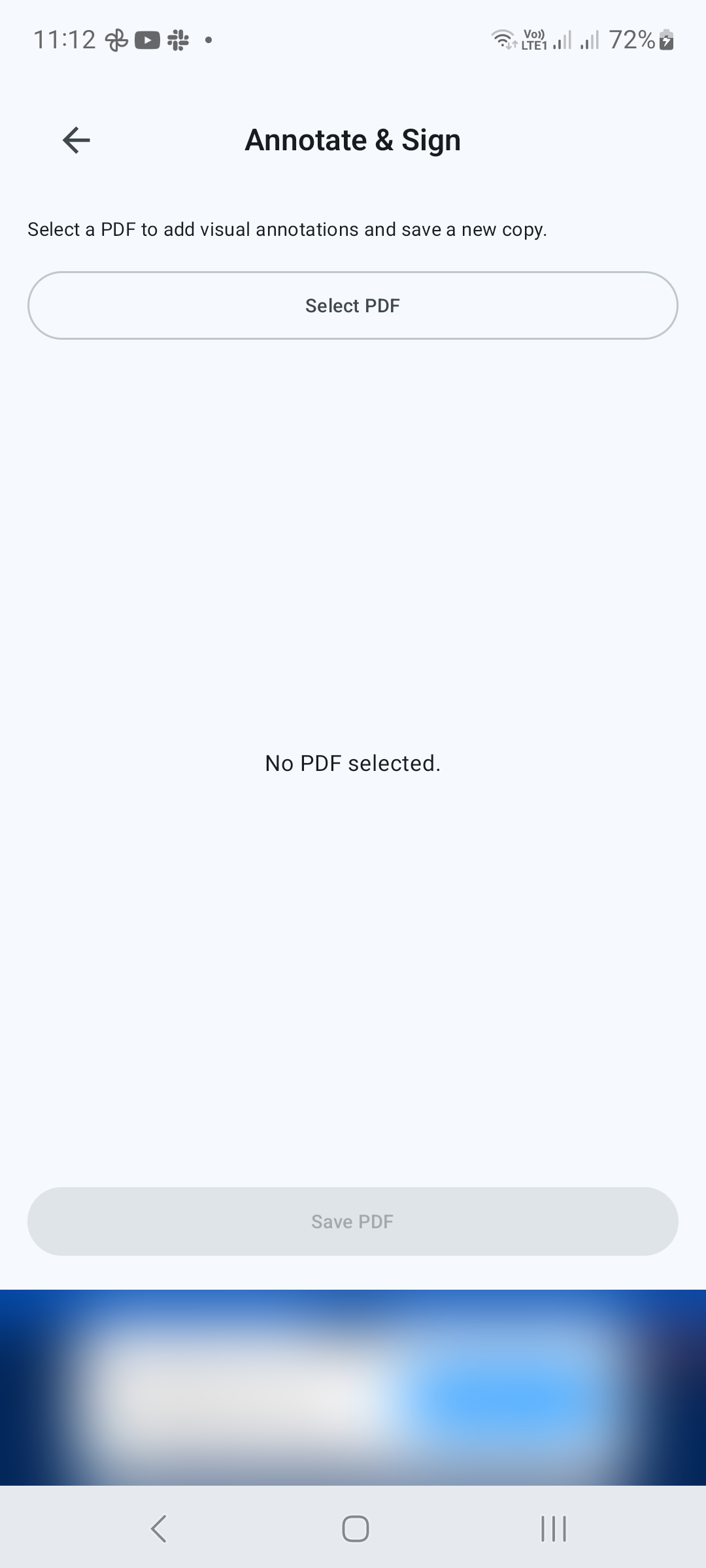
Choose the document
Open Annotate & Sign under Tools, tap Select PDF and choose your file. The editor opens with a toolbar above the page.
STEP 02 / 04
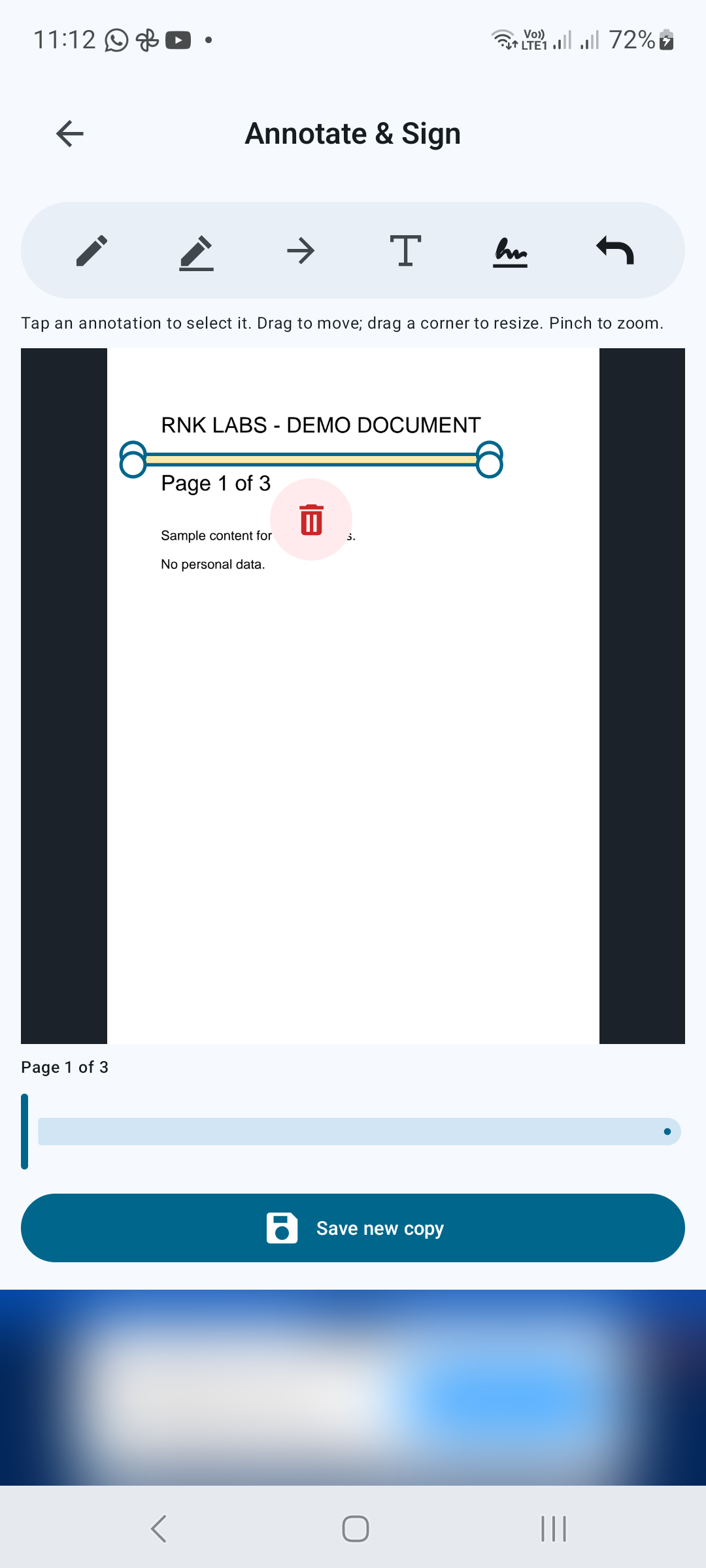
Add notes and highlights
Choose Draw, Highlight, Arrow or Add text in the toolbar. Follow the selected tool’s prompts to place your annotation. Use the page control below the preview to reach another page. Pinch to zoom when you need a closer view.
STEP 03 / 04
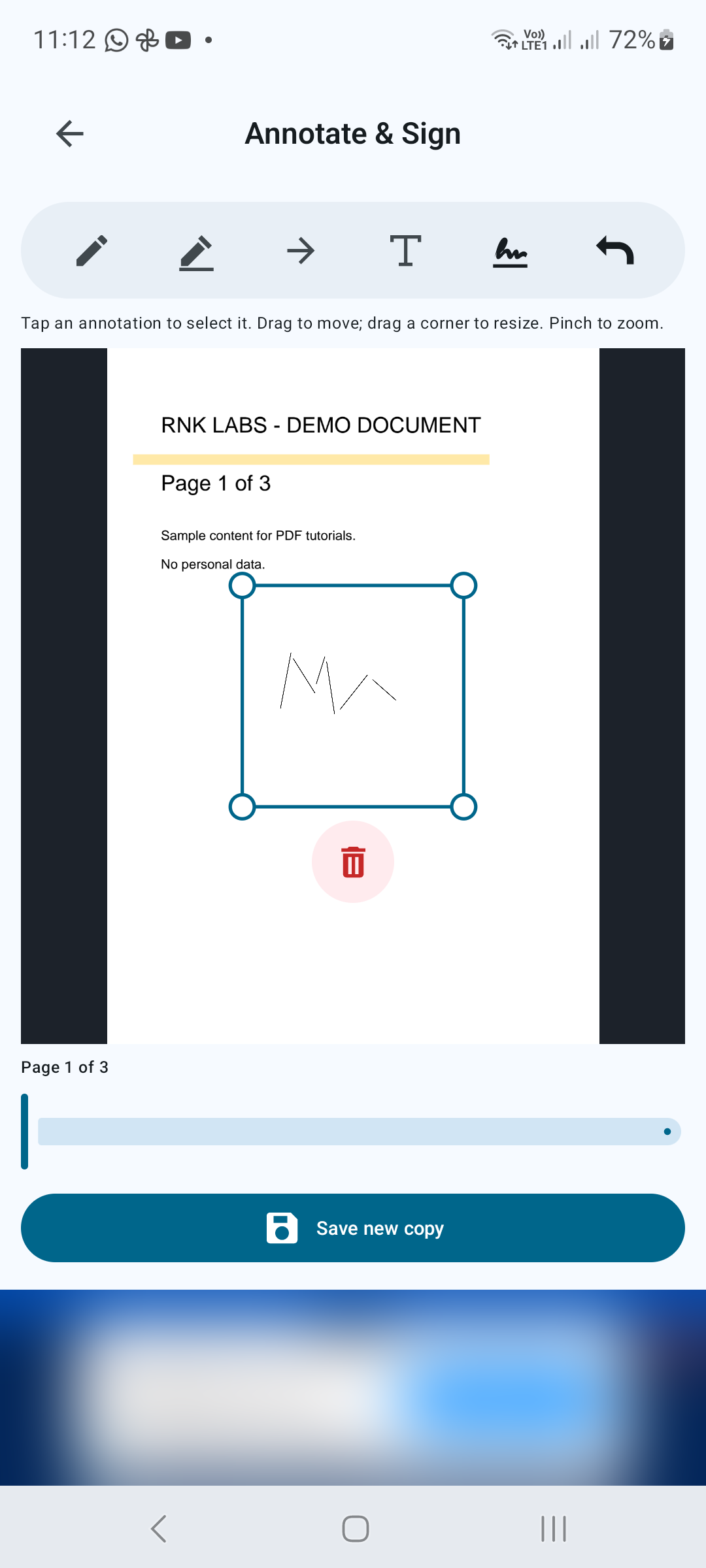
Insert and position your signature
Tap Insert signature and follow the signature tool’s prompts. Tap an annotation to select it, drag it to move it and drag a corner to resize it. Use Undo to reverse an unwanted edit. Review the signature’s size and placement before saving.
STEP 04 / 04
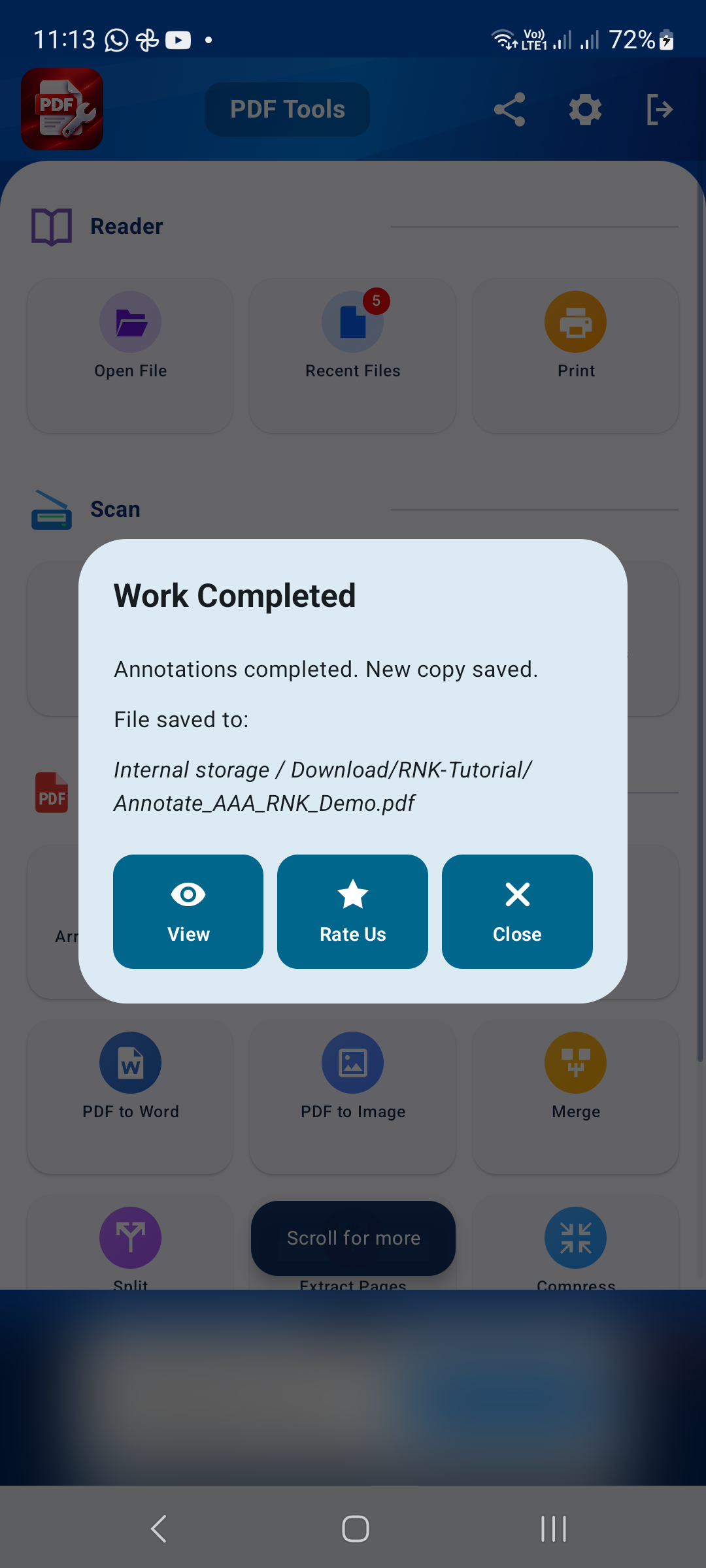
Save a new copy
Tap Save new copy, choose a destination and file name, and confirm. Open the output to check that notes and signatures appear on the intended pages.
Tips for a better result
- Use a copy of your document when practicing.
- Make sure annotations do not hide essential text.
- Check the recipient’s signature requirements before sending a signed document.

GET STARTED ON ANDROID
PDF Converter, Scanner & Tools
Convert JPG to PDF, PDF to Word, scan, read, merge, compress and more.
Get it on Google Play