
PDF CONVERTER / ANDROID TUTORIAL
How to Convert JPG on Android
Turn a JPG image into a PDF you can save, read and share. Here’s how to do it in PDF Converter, Scanner & Tools, with screenshots captured directly from the Android app.
Screenshots show the English app interface. Translated button names may differ from the labels in the images.
STEP 01 / 05
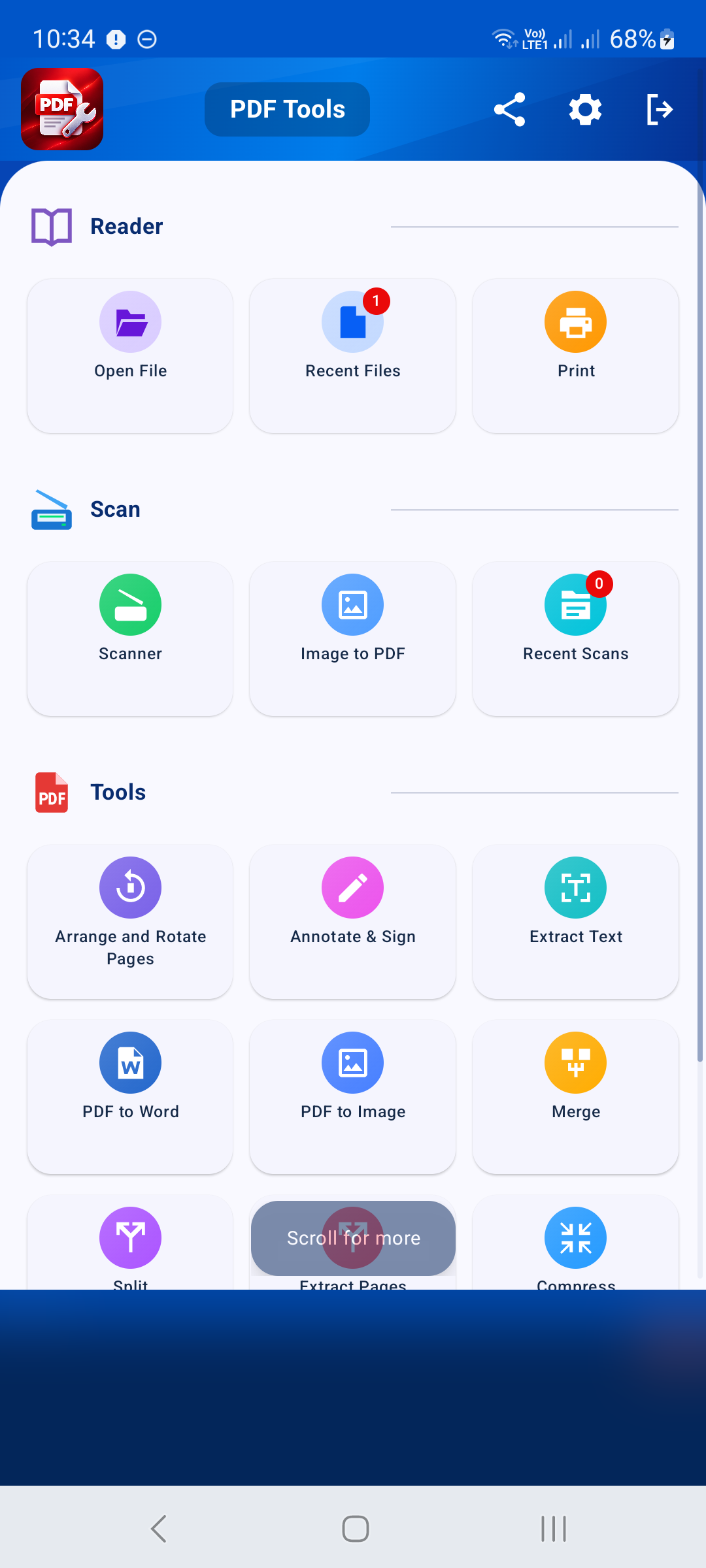
Open Image to PDF
Open PDF Converter, Scanner & Tools. On the home screen, find the Scan section and tap Image to PDF. Choose the JPG image you want to convert in the Android photo picker, then confirm your selection. The picker may use your phone’s language.
STEP 02 / 05
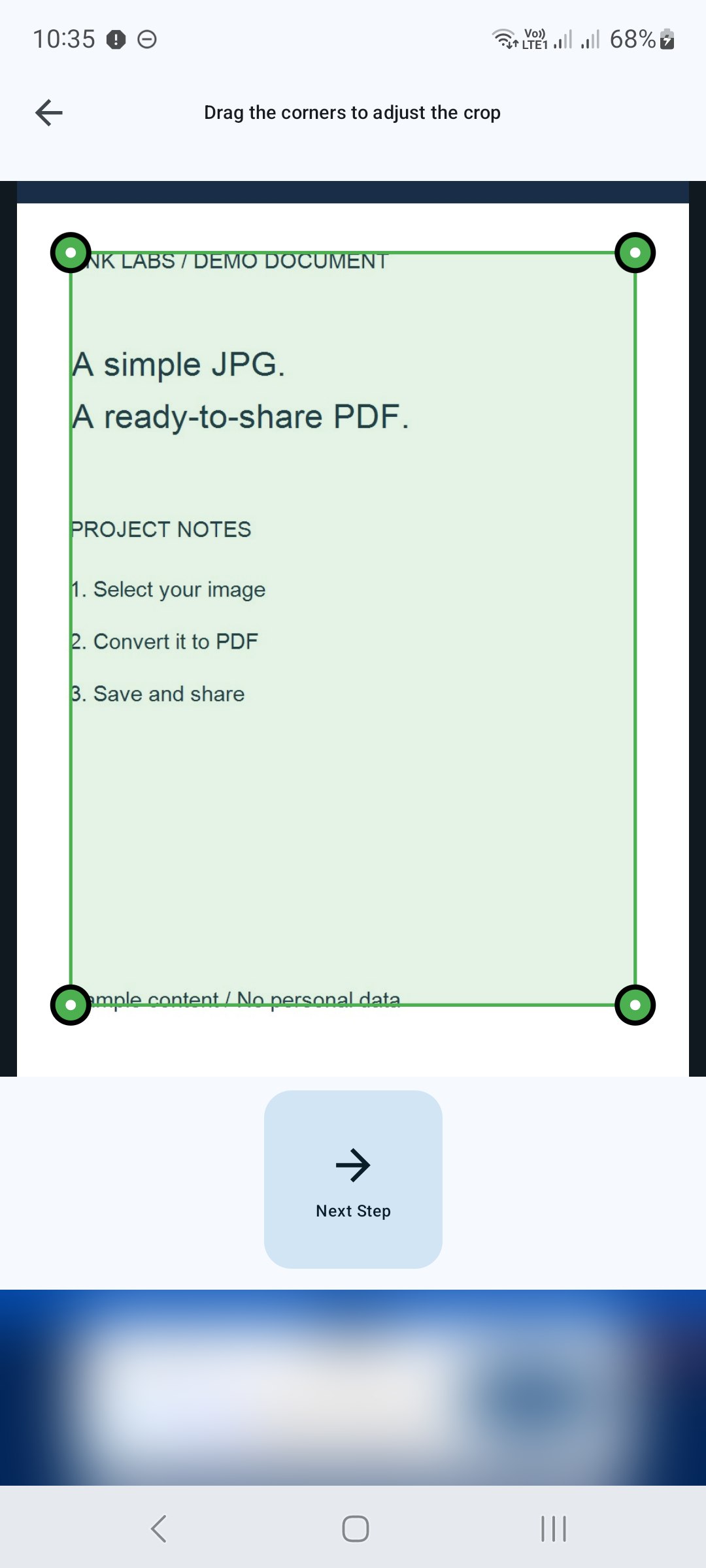
Adjust the crop
Drag the four corner handles to select the part of your image you want to keep. Check that the edges include all the text or content you need. Tap Next Step to continue.
STEP 03 / 05
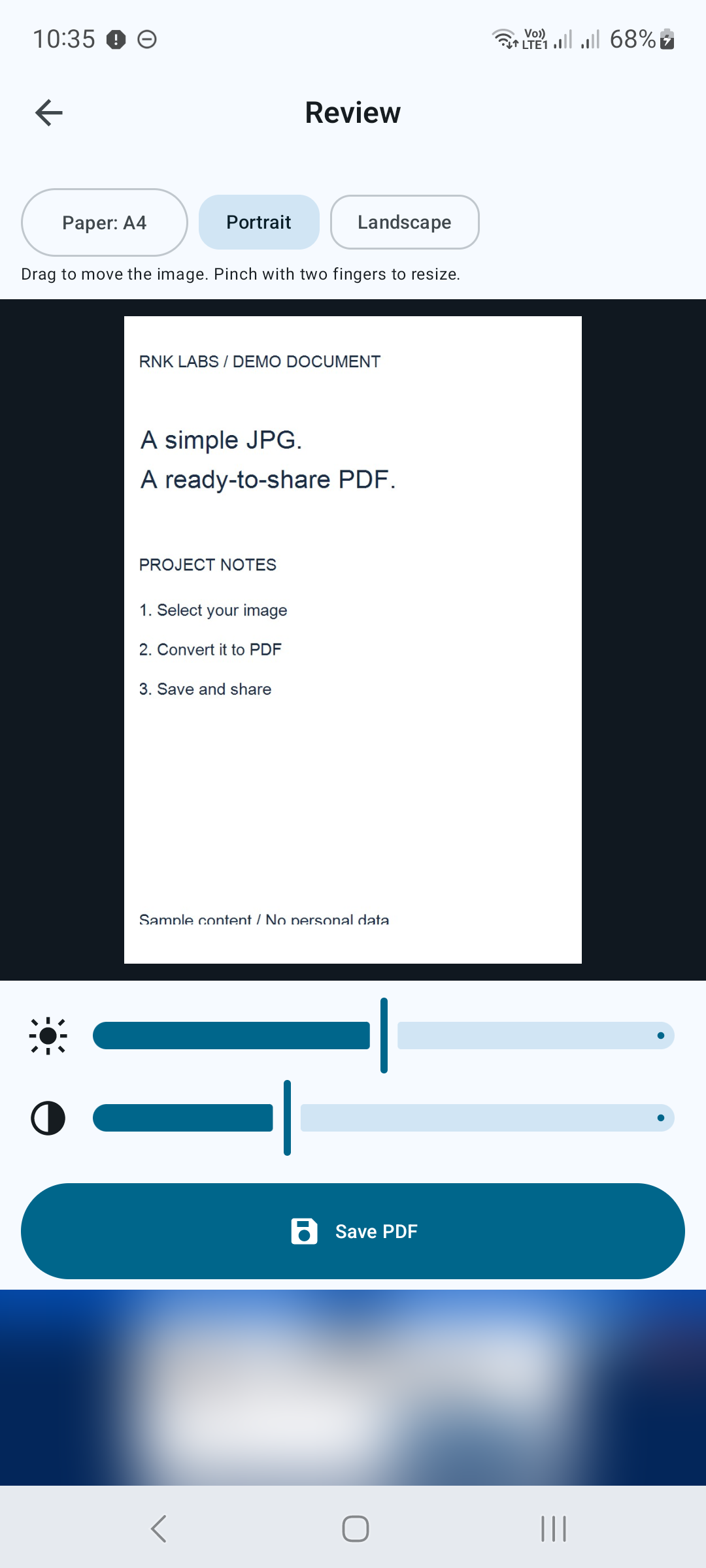
Review your page
On the Review screen, check the paper size and choose Portrait or Landscape. Drag the image to move it and pinch with two fingers to resize it. Adjust the brightness and contrast sliders if needed, then tap Save PDF.
STEP 04 / 05
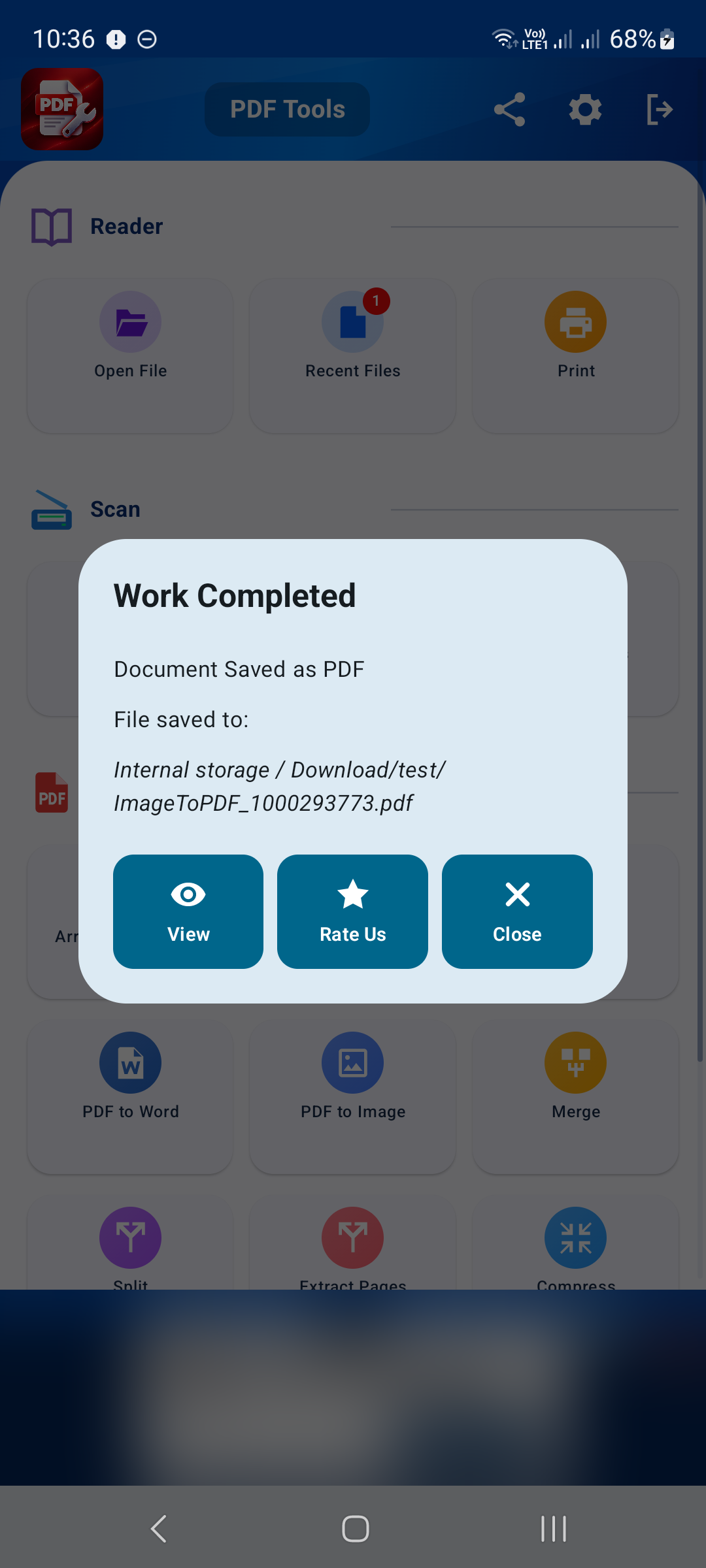
Save the PDF
In the Android save dialog, choose a folder, edit the file name if needed and confirm the save action. When the app shows Work Completed and Document Saved as PDF, your conversion is finished. The dialog displays the location of your new file.
STEP 05 / 05
Open and share the result
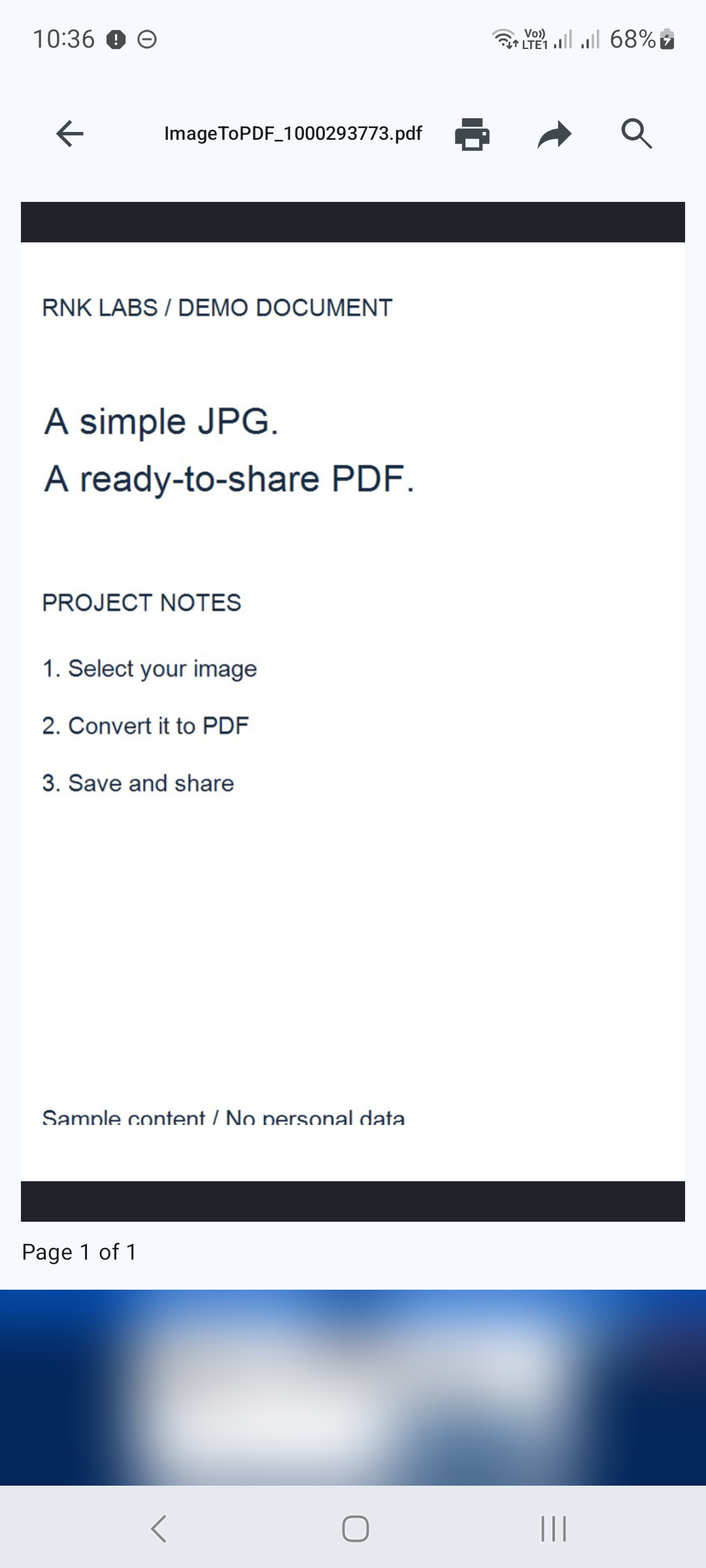
Tap View in the confirmation dialog to open your PDF. Check the page before sending it. In the reader, use the share icon at the top to choose a compatible app, or the print icon to open print options.
A few tips for a clearer PDF
- Start with a sharp, well-lit JPG. Enlarging a blurry image will not restore missing detail.
- Keep important text inside the crop handles and check the preview before saving.
- Choose a recognizable file name and remember the folder shown in the save confirmation.
READY TO CONVERT YOUR JPG?
PDF Converter, Scanner & Tools
Convert JPG to PDF, PDF to Word, scan, read, merge, compress and more.
Get it on Google Play