
PDF CONVERTER / ANDROID TUTORIAL
How to Merge PDF Files on Android
Combine two or more PDFs into one document with Merge. Arrange the input files in the intended reading order before saving.
Screenshots show the English app interface. Translated button names may differ from the labels in the images.
STEP 01 / 04
Open Merge
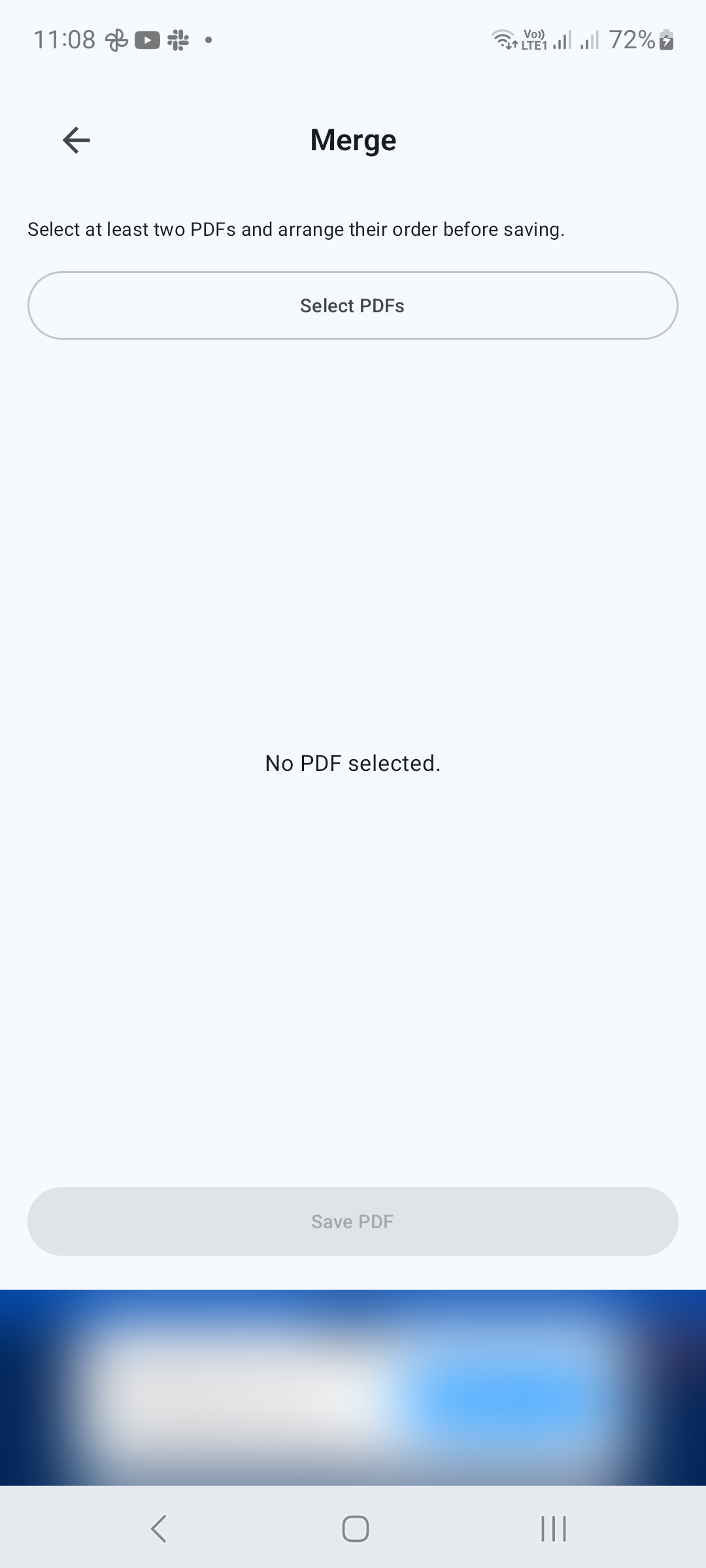
From Tools, tap Merge. Tap Select PDFs to open Android’s file picker. Select at least two PDF documents and confirm your selection.
STEP 02 / 04
Arrange the input files
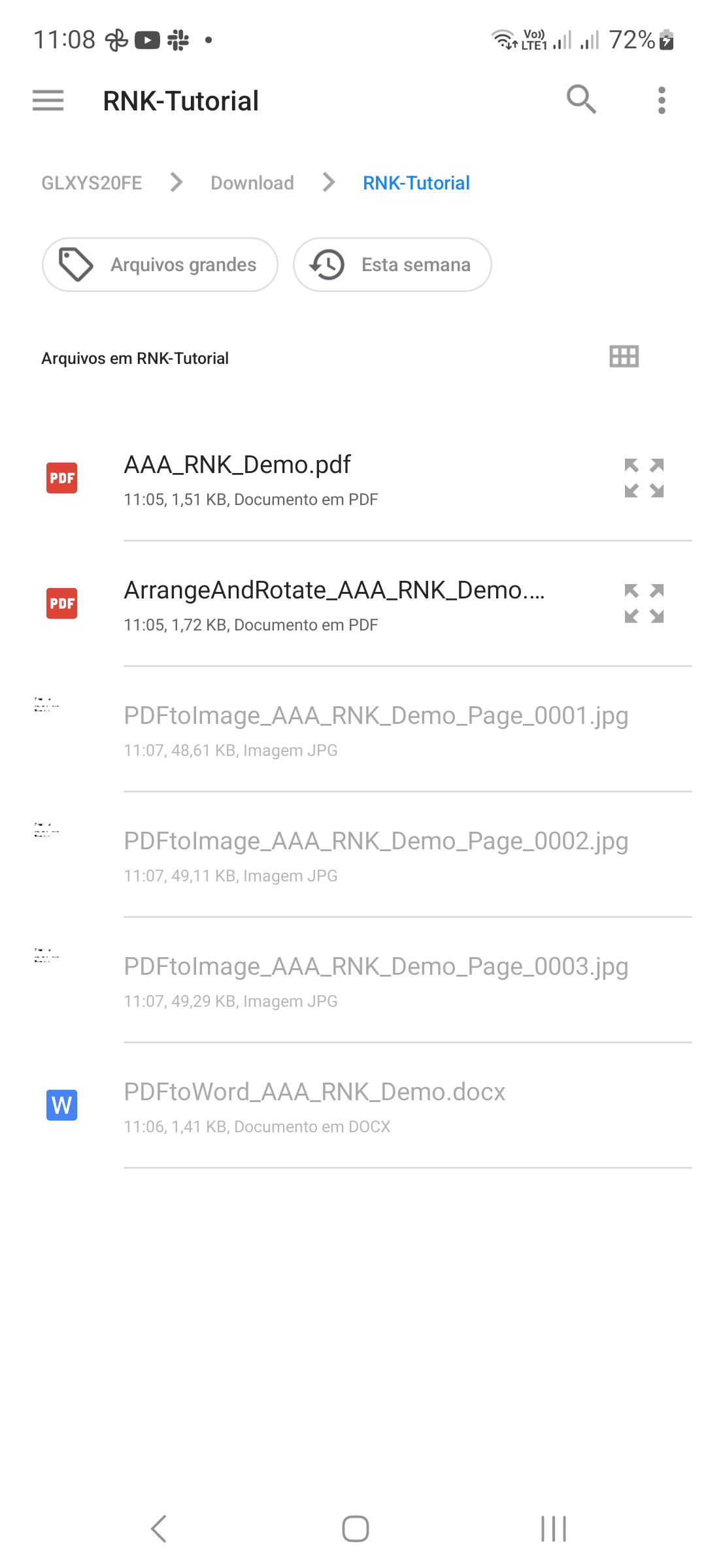
Review the selected PDFs and their order. Use the available ordering controls to put the files in the sequence you want. Remove an unwanted file before continuing. For example, put the cover document before the main report.
STEP 03 / 04
Save the combined document
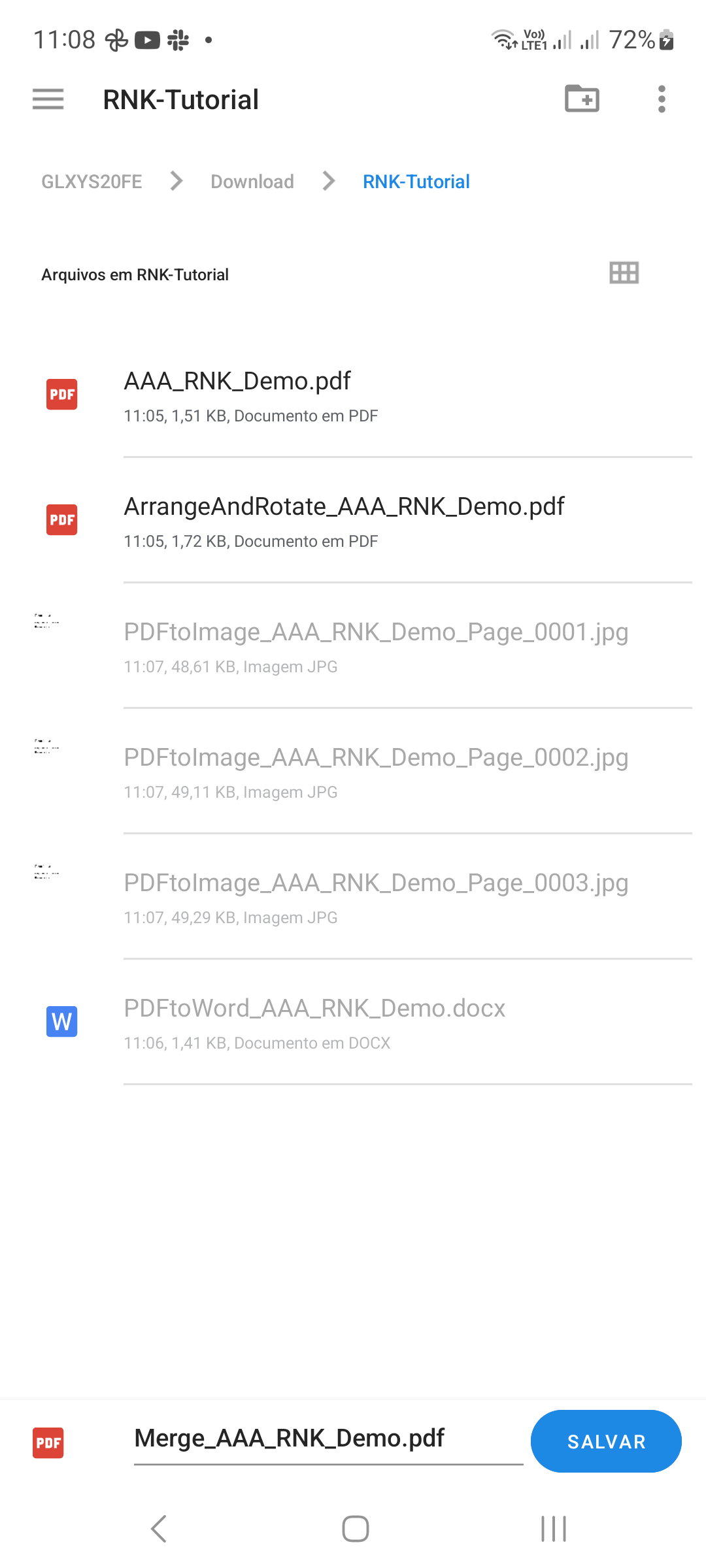
Tap Save PDF, choose a destination and give the combined file a recognizable name. Confirm the save and wait for completion.
STEP 04 / 04
Review the merged PDF
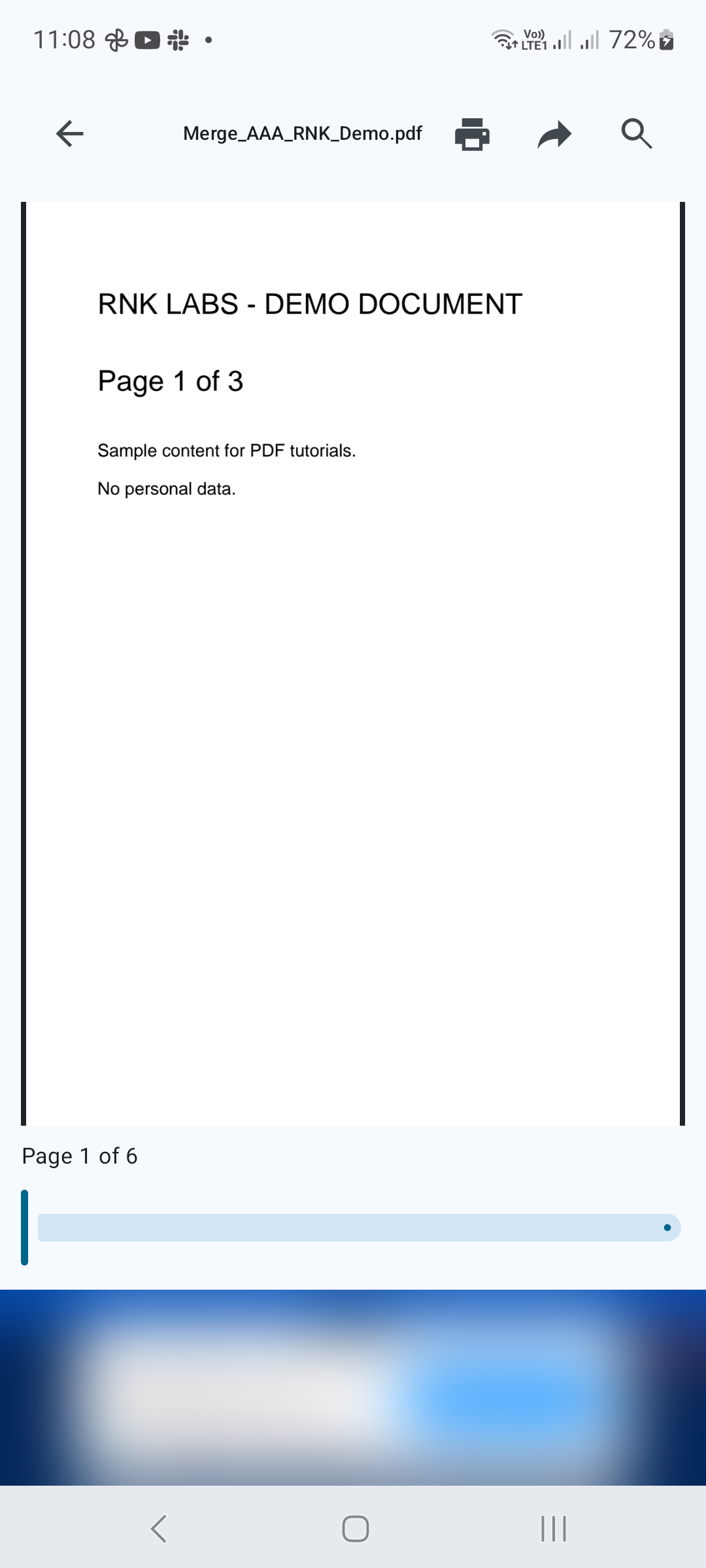
Open the output. Check the document boundaries, page order and total page count. If individual pages need to move after merging, open the result in Arrange and Rotate Pages.
Tips for a better result
- Give source files recognizable names to avoid selecting the wrong version.
- Keep the original PDFs until you have checked the merged output.
GET STARTED ON ANDROID
PDF Converter, Scanner & Tools
Convert JPG to PDF, PDF to Word, scan, read, merge, compress and more.
Get it on Google Play